
Removing a virus from a WordPress site is something that we have probably all encountered at least once; if not, good luck! However, since anyone can get caught in this situation, it is better to see once and for all what to do to resolve it. If these few lines have convinced you to learn more about this, don’t miss this article from the Pars Pack blog; in this article from the WordPress training followtechnologies, we will explain to you when we should suspect that our website has become infected with a virus and how to clean a WordPress site that has become infected.
What is malware?
Malware is an abbreviation for “malicious software.” It’s a general term for any malicious software. Hackers use malware to gain unauthorised access to your WordPress site. Malware can negatively impact your site and pose a serious security risk to you and your visitors.
You will usually be notified if malware is present on your site. Signs of malware include:
- Your website performance is disrupted.
- Visitors to your site will see the error message “This site contains malware.”
- There are unknown files or scripts on your server.
- Your pages are filled with harmful links.
- You cannot log in to your site.
- Your site generates unwanted pop-ups.
- How to install malware on WordPress sites
Malware can be installed on a WordPress site in various ways. Usually, hackers or bots exploit security vulnerabilities. For example, if you don’t take the necessary security measures to prevent Brute Force attacks or if your password is weak, a hacker can gain access to your website. In Brute-Force attacks, bots or hackers automatically try combinations of usernames and passwords on the site’s login page.
Outdated plugins and themes are also security vulnerabilities that hackers can exploit to target your site. Robot networks on the Internet look for websites with these vulnerabilities and use them to install malware.
Malware can infiltrate your WordPress server via phishing links. This can happen when you accidentally click on a phishing link in an email or visit a malicious website.
What should we do to remove a virus from a WordPress site?
To remove a virus from a WordPress site, you first need to make sure that your website is infected with a virus; for this purpose, various websites and plugins can monitor your site and tell you whether your website is infected with a virus or not. After that, you need to choose a cleaning method based on the virus infecting the website. Once you have completed all these steps and your website is free of the virus, you need to find ways to prevent it from being infected again.
The importance of removing viruses from your WordPress site
Let’s make a promise to ourselves right now, not to get involved in strange names like worms, Trojans, malware, spyware, etc.! Our goal is to clean our website of any contamination. Now, what’s the difference between the specialised dictionary’s terms for the creature that’s caused us trouble: a Trojan, a Trojan horse, or a worm? So from now on, and only in this article, we will call all of these things “viruses”, although we know very well that there are definitely technical differences between all of these things.
It probably doesn’t need to be explained how important it is to remove and scan your WordPress site for viruses! When a virus gets onto your website, it can be a disaster. For example, it could be programmed to steal your customers’ credit card information! The more important issue that may arise is when you realise that a virus has entered your website, and it’s too late. The first step in cleaning a WordPress site that has been infected is to determine whether it has been infected at all.
Free plugin to remove viruses from WordPress sites
Various websites and plugins can check your website and report whether it has gone viral. One of the best is the Jetpack Protect plugin. This tool automatically scans your website for over 28,700 different types of vulnerabilities. It also provides you with recommendations for securing your website.
There is a very good reason Jetpack Protect is one of the best plugins for removing viruses and malware from your WordPress site: it doesn’t require any special or complicated settings. So, all you need to do is activate it. In this case, you can be sure that as soon as a virus or malware is detected on your site, you will be warned.
The free version of this plugin is a good option for protecting your site. Of course, if you purchase the paid version of this plugin, the Jetpack Scan option will be included. This option lets you clean your WordPress site with a single click. In addition, your website is protected 24/7 using a powerful WAF firewall.
How to remove a virus from a WordPress site
I think we’ve covered enough about site viruses and their dangers so far. Now let’s take a look at exactly what you need to do to remove a virus from your WordPress site. We’ll do this both with and without a plugin to make sure you can clean your website yourself, even if you don’t want to use plugins.
1. Jetpack
Removing viruses from a WordPress site with a plugin
So let’s start with the Jetpack Protect plugin. To use this plugin to remove and scan WordPress for viruses, you can use the following step-by-step method:
Step 1: Check your WordPress site for virus infections
We’re assuming you’ve opted for the non-free version of Jetpack Protect, so we’ve explained the rest of this tutorial accordingly. Honestly, I think the price you pay for the paid version of this plugin is totally worth it for what it does.
To get started, go to the Jetpack Protect plugin installed on your WordPress and click the Scan Now button:
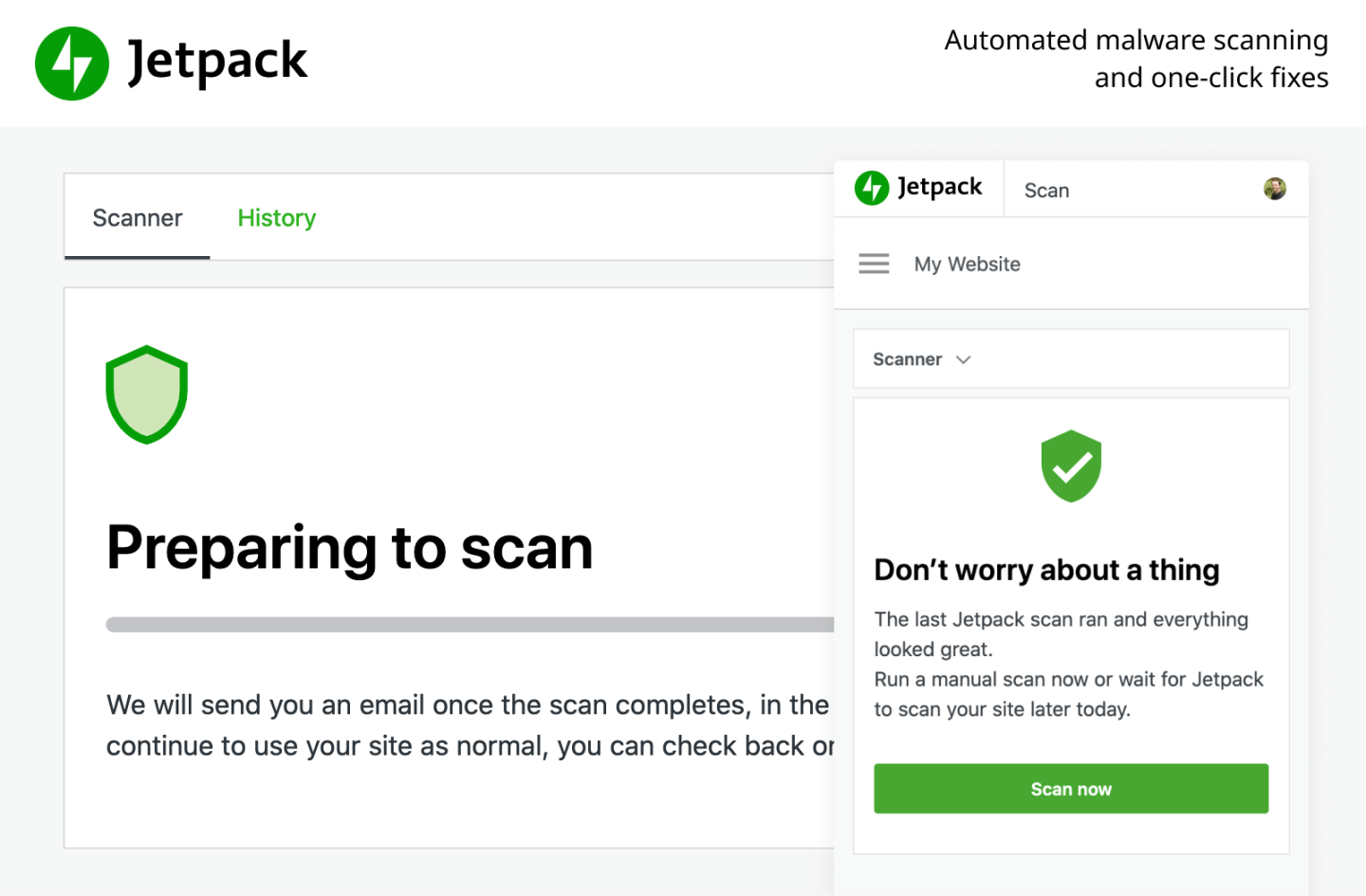
Jetpack quickly checks if your website has gone viral.
Step 2: Remove the virus from your WordPress site
If no viruses are found on your site, you will see this message:
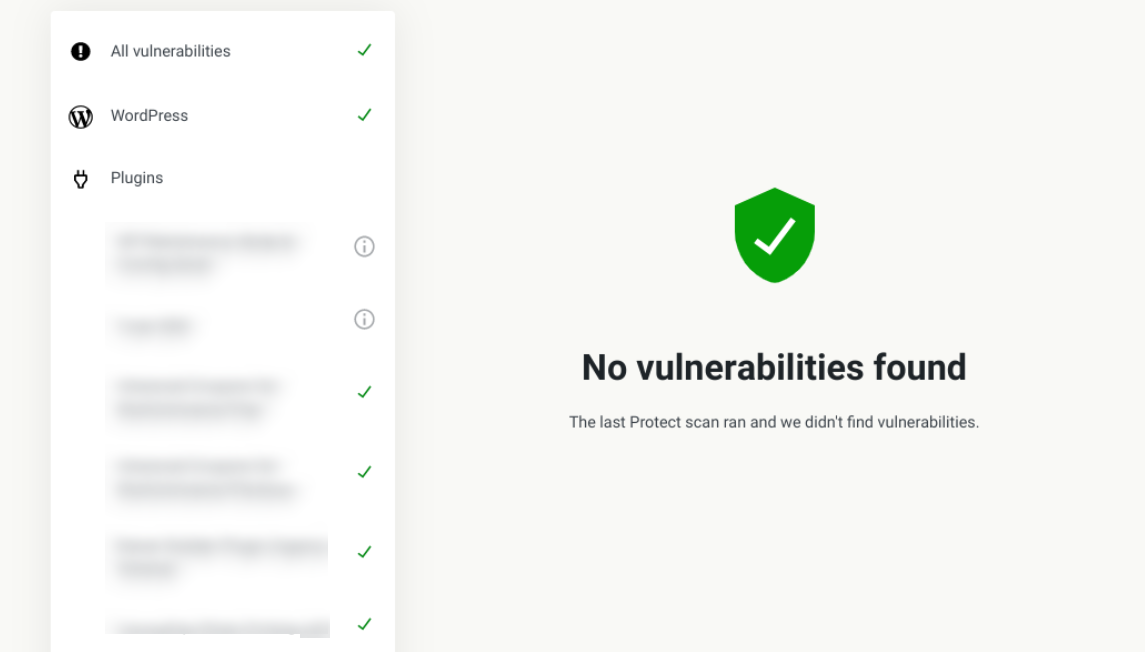
If you’re not lucky, you’ll see a list of detected security issues and viruses. Don’t worry, you can clean your WordPress site in seconds by simply clicking the Remove Threat button.
Step 3: Remove malware warnings from the site
Sometimes, Google also notices that your site has gone viral. In these cases, visitors may be warned that your website is not secure. This can easily put your brand, which you may have worked hard to build for years, at serious risk. So the next step after removing the virus from your WordPress site is to remove these warnings.
If Google has flagged your website, the best solution is to notify Google that the problem has been fixed. You can also do this through Google Search Console. To do this, go to the Security Issues menu. All security error messages are listed in this section. Now, check the I have fixed these issues option and then click on the Request a Review button:
Google then checks whether the security errors have been fixed. If all the issues listed on this page have been resolved, the security error message will no longer appear to users.
2. Sucuri
Sucuri is a popular option that offers a wide range of security solutions. If your website is on WordPress, this tool also has a plugin that syncs with the WAF module. This tool’s scanning service removes malware, bugs, errors, and malicious files.
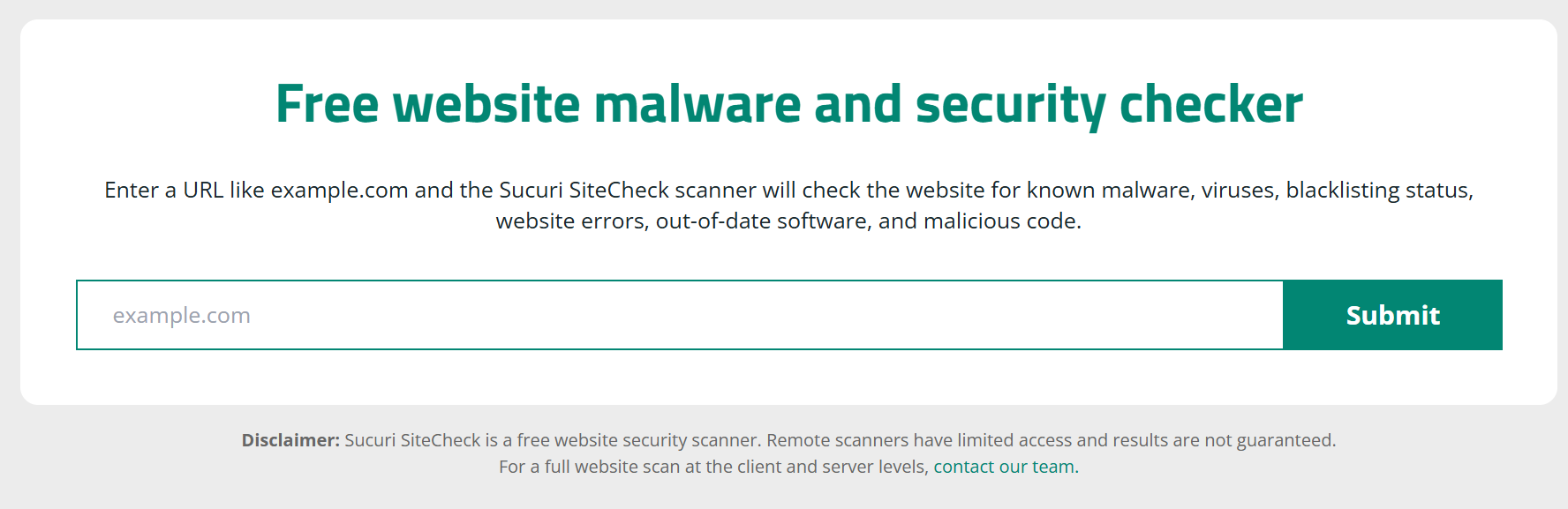
- Malware
- Blacklist status
- Website errors
- Software not updated
3.WordFence:
When you install the WordFence plugin, it automatically scans your website. However, you can sometimes initiate a manual scan, which will also perform a malware scan of your website. To do this, you need to do the following:
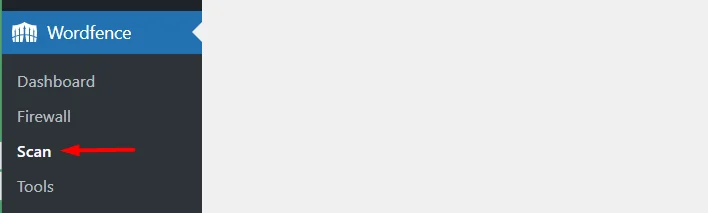
i) Go to WordFence > Scan section in your WordPress dashboard.
ii) In the section, click on the “ Start New Scan ” button.
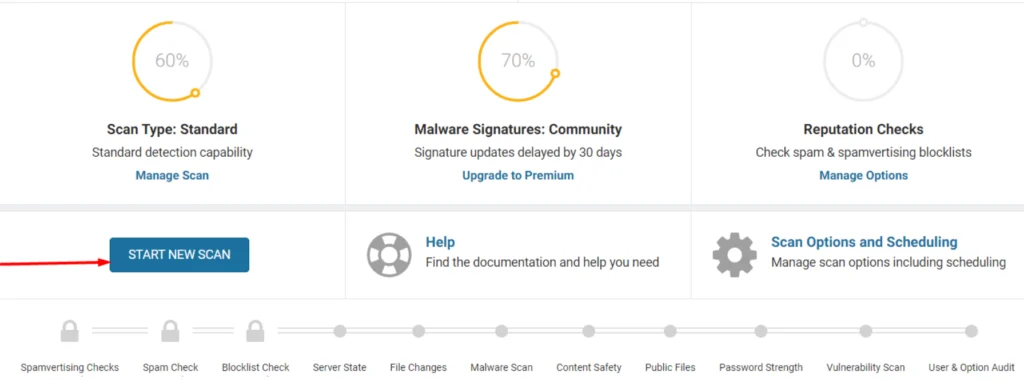
Let the scan run, and once it’s finished, you’ll see a preview of the scan results.
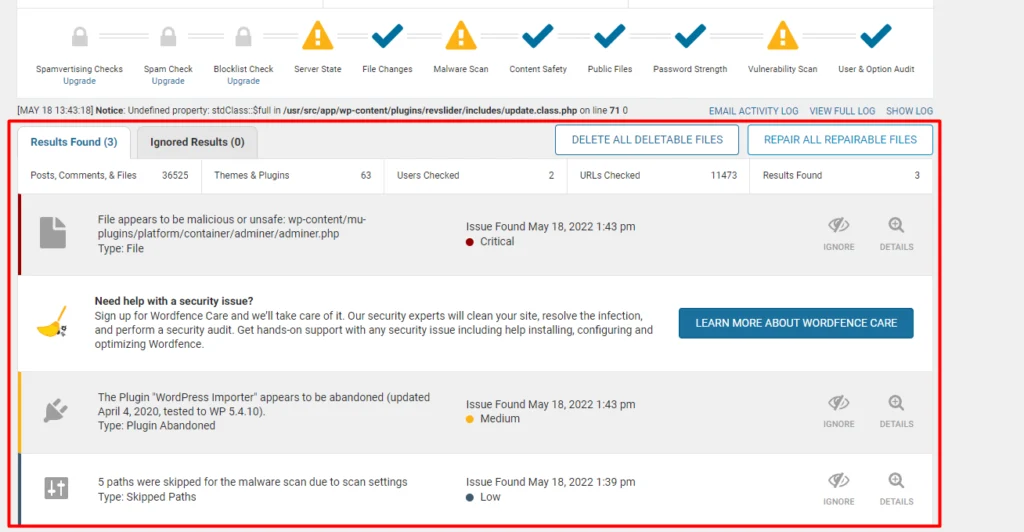
The identified security issues are presented in this report. They are grouped by priority, with the most important issues presented first.
By clicking on a suspected malware issue, you will be presented with a course of action that you can take.
Below is a sample screenshot of this:
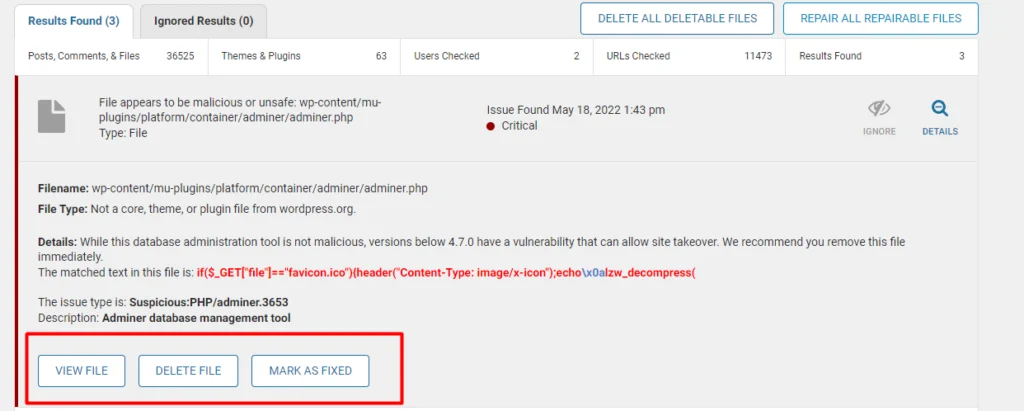
If you are sure it is malware, you can fix or remove it. However, you should back up your site before doing this.
Removing a virus from a WordPress site without a plugin
Although we strongly recommend using a reliable plugin to remove viruses from your WordPress site, it is still important to know how to do it manually. For example, if your site gets infected with a virus for any reason, the plugin cannot remove it. To do this, follow these steps in order:
Step 1: Put your WordPress website into Maintenance Mode
The first step in manually cleaning up a WordPress site infected with a virus is to put it into Maintenance Mode. This will let your website users see a message that you are making changes to the site. There are various tools to do this. For example, you can use the WP Maintenance Mode and Coming Soon plugin. By the way, using this plugin is also quite simple.
All you have to do is go to the plugin’s Settings page, select Active in the Status section, then click Save Settings at the bottom of the page. This will temporarily show a Maintenance Mode message to anyone who visits your website.
Step 2: Back up website and database data
You’re going to start playing with fire in a few minutes! So, before you do anything, it’s a good idea to take a full backup of your entire website and database. This will ensure you can restore any data you accidentally delete, even if you delete it before you manually remove viruses and malware from your WordPress site.
The best way to back up your entire website is to use plugins like JetBackup, which are designed for exactly this purpose. Many of these plugins are free, and you can do almost everything with their free version. If you don’t have any experience with backup plugins, you can use FTP or the PhpMyAdmin tool. Although using this tool has its own problems, it is a decision you have made yourself!
Step 3: Identify viruses on the site
Now is the time to take a flashlight and search the back alleys of your website for viruses. You should do this in both the website code and the site’s database and files.
Obviously, if you don’t want to use any tools, you need a high level of knowledge of data and web security. For example, you need to know which commands are used in the PHP language to create viruses so that you can inspect the backend code and find possible viruses.
If you want to check your source code to clean up a virus-infected WordPress site, you should look for the two iframe and script attributes. As a further guide, look more closely at lines that start with Script= or iframe src=URL and see if they link to an unfamiliar website address.
Step 4: Replace the files
Now, to remove the virus from your WordPress site, you need to replace all the original WordPress files with clean files, i.e. the files you just downloaded from the original WordPress site. When you do this, make sure to keep the wp-config.php file.
Cleaning a Virus-Infected WordPress Site by Replacing It with New Files
In other words, after downloading and extracting the WordPress zip file from WordPress.org, delete the themes and plugins folders in the wp-content folder, and keep the rest of the files. Then, inside the WordPress folder, select all the files and folders, and re-compress the WordPress script (e.g., ZIP). Next, you need to replace all the newly downloaded files with the old ones.
To replace WordPress files, you can use your hosting provider’s file manager. To do this, upload and extract the WordPress zip file that you have removed the plugins and themes folders from, and that does not include the wp-config.php file, to your hosting provider. This will replace the core WordPress files with healthy files. However, the themes and plugins folders in wp-content may still be infected.
In this case, it is recommended to back up the contents of both folders, then reinstall your plugins and themes from the WordPress repository.
Step 5: Remove malicious code from the wp-config.php file
To ensure the wp-config.php file you saved is secure, you can compare its contents with a new, safe file. Obviously, information such as the database name, etc., will differ between the two files. Still, if you want to manually remove and scan WordPress, you should be able to identify and remove any potential malicious code from this file. Finally, save the modified file.
Step 6: Identify Backdoors
When hackers successfully break into a website, they usually leave a backdoor so they can break in again later. One of the most important steps after removing a virus from a WordPress site is identifying and blocking the backdoors it left behind.
To do this, you need to carefully examine your favourite folders, such as wp-content/upload, wp-content/plugin or wp-content/themes. You should look for various PHP functions, the most important of which are:
- eval
- exec
- assert
- base64
- system
- str_rot13
- stripslashes
- gzuncompress
- Move_uploaded_file
Note that although these functions may not always be dangerous, experience has shown that in some cases, the context in which they are used can also pose risks.
Finally, we recommend that you never manually delete or scan WordPress for viruses if you do not have complete information about this, as you may permanently lose valuable content on your website.
Conclusion
Removing viruses from a WordPress site is more important than ever. With advances in technology, hackers and virus creators have also evolved to pursue their interests by any means they can. In this article from the WordPress Training followtechnologies, I talked to you about removing viruses from a WordPress site. I explained the solution: using a plugin or the manual method. If your site is infected with a virus, you can ask questions in the comments section to fix the problem and remove the virus. Our experts will provide you with the necessary guidance as soon as possible.
Frequently Asked Questions
1. Is the host or server operating system effective in website security?
Yes. Typically, using the Linux operating system on a host or server increases its security. However, Windows servers can also provide users with a high level of security.
2. What is the best plugin to remove viruses from a WordPress site?
There are several plugins for this; however, Jetpack Protect is known as one of the best for removing viruses from a WordPress site.
3. Can I manually remove and scan for viruses in WordPress?
Yes, it is possible to do this, but if you want to do it yourself, you must have a high level of coding and web security experience.