
“A critical error has occurred on this website.” Imagine opening your website first thing in the morning and seeing this message. When you don’t know where the error is coming from, it can seem a bit frustrating at first glance.
If you encounter this message, there is no need to worry, because in this article on the WordPress blog, the followtechnologies tutorial, we have reviewed 9 effective methods to help you troubleshoot this error. If you have decided to take the plunge and troubleshoot the error yourself rather than entrusting the task to the hosting company, this article will help. Regardless of the cause of this error, it is important to fix it as soon as possible so the website is available to visitors again.
Step 1: Check the email registered on the website
When some errors occur, WordPress sends an email to the address you registered on the website. This email contains important information about the problem “A critical error has occurred on this website.” If you are a WordPress expert, you can fix the problem using the code provided.
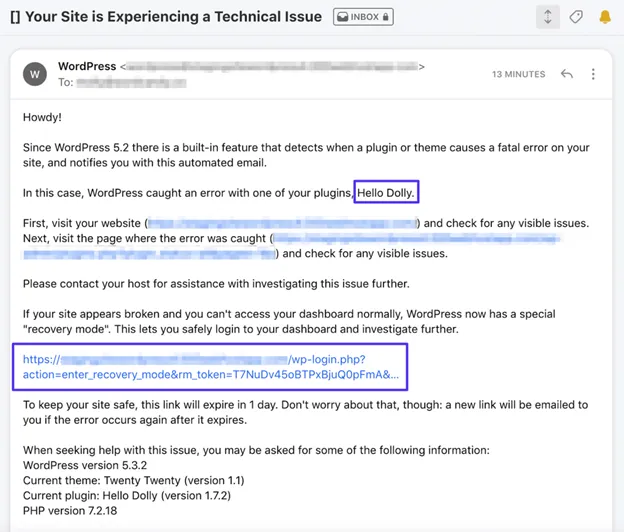
This email will contain important information that will help you troubleshoot, such as:
- The name of the incompatible plugin or theme that is causing the conflict.
- A link that, when placed on a website, puts it into recovery mode.
If you didn’t receive this email or don’t have access to it in any way, there are other ways to fix the “A critical error has occurred on this website” problem. This email is like a roadmap that helps you identify the error. It will identify the problematic plugin, theme, or code right from the start and tell you, so if you are a website admin and have received the following message, be sure to pay attention to it:
Please Check Your Site Admin Email Inbox for Instructions”
This message is like a treasure map to help you fix the “A critical error has occurred on this website” problem. However, if you haven’t received this email or don’t have access to it, use the methods we’ll mention below.
When you encounter one of the common WordPress errors, like “A critical error has occurred on this website,” WordPress usually doesn’t have much more to say than displaying a white page with an error line on it.
Step 2: Clear your browser cache and refresh the page.
Clearing your browser cache when encountering WordPress errors is like prescribing tea for any heartache. Although it may not work, it doesn’t hurt to try. Before you go through the trouble of other methods, we suggest you click the three dots in your browser and select Clear Cache. Then, return to the website and click the refresh icon at the top of the page. If the problem is not resolved, prepare yourself for the next steps.
Step 3: Find the incompatible plugin
Due to the nature of the “A critical error has occurred on this website” issue, you will not be able to access the WordPress dashboard; therefore, you have two options for disabling and checking your plugins:
1. Use the help link you received in the email.
If you have access to the recovery link that WordPress emailed you, clicking on it will take you to the WordPress dashboard login page.
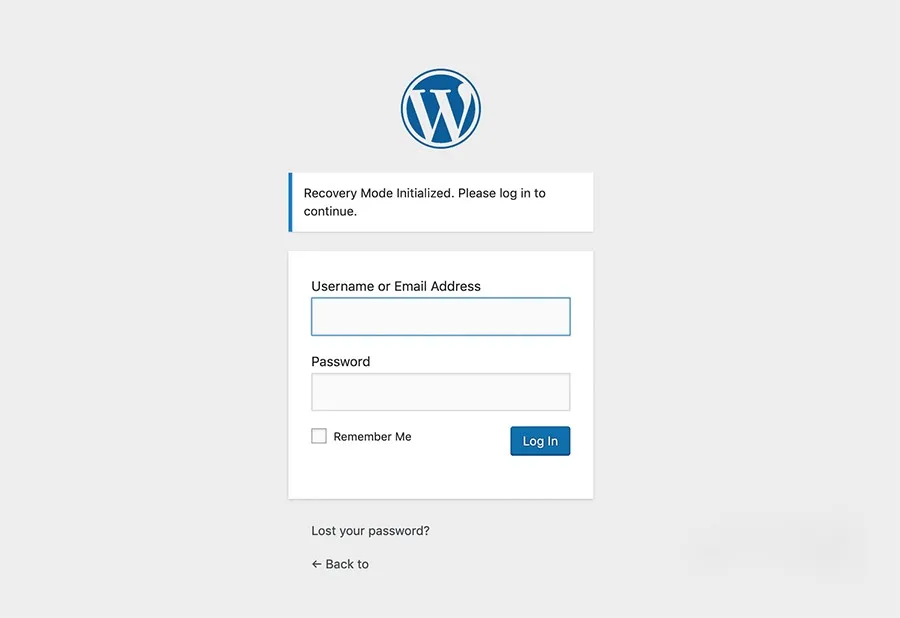
As long as you use this link, the website will appear in its normal state; other users and website visitors will still see the message “A critical error has occurred on your website.“
In recovery mode, the plugin or theme that is causing the WordPress error will be stopped. The stopped plugins will appear in the notification bar at the top of the website. If you click on the Plugin Screen, you will see the incompatible plugin. This way, you can proceed to “Fix a critical error occurred on this website”.
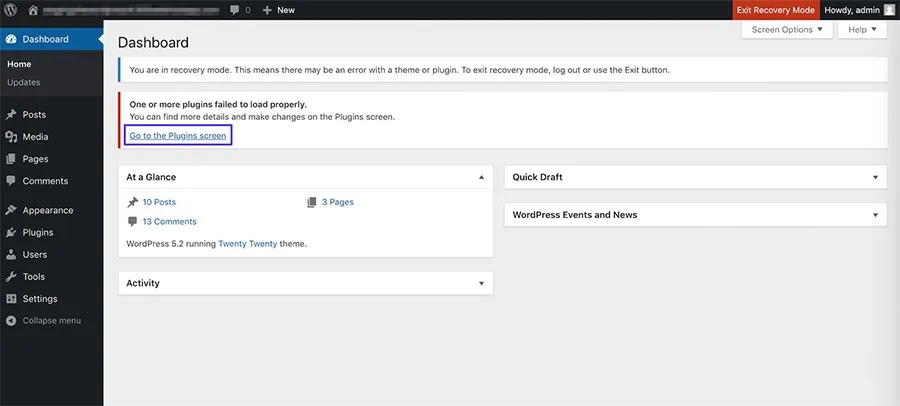
If the “A critical error has occurred on this website” problem is caused by a plugin, after turning off the problematic plugin, clicking Exit Recovery Mode will turn off the plugin for all users, and your website will be available.
Now the question is, what should we do with a deactivated plugin? If the plugin is not essential to the website’s functionality, it is better to delete it or replace it with another plugin. In this case, it is better to seek help from a WordPress expert. In this case, you can probably write its code and place it on the website instead of the deactivated plugin.
What should we do if there is no help link to log in to the WordPress dashboard? Below, we will answer this question.
2. Find the source of the problem through hosting
Log in to your hosting and, through File Manager, go to the Public_html folder, then select WP-content. In this folder, select the Plugins folder and right-click on it. Next, click Rename to change its name.
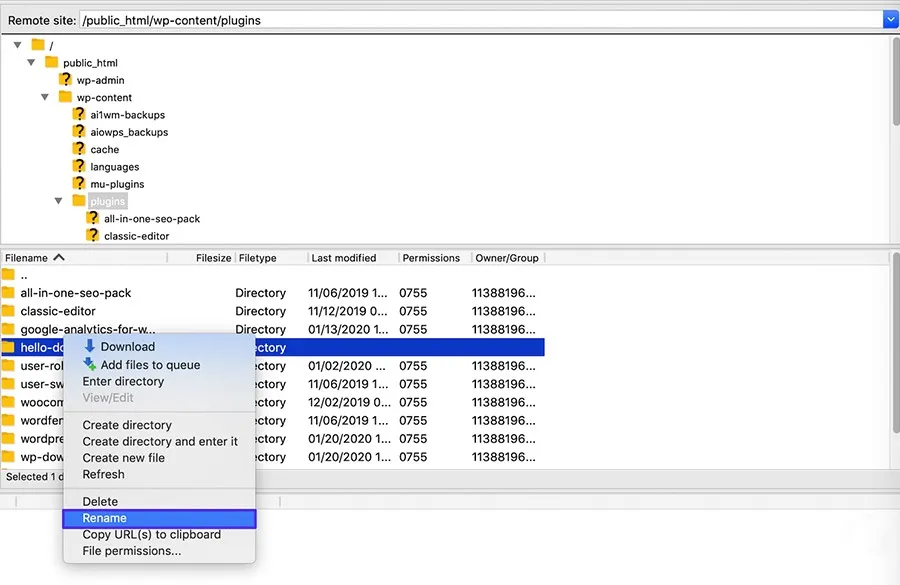
Renaming the folder will temporarily disable all plugins on your website. Now you need to refresh the website. If you don’t see the message “A critical error has occurred on this website in WordPress”, then the problem is with the plugins.
In this case, to identify the problematic plugin, you need to enable each plugin, refresh the website, and then check the website. Continue doing this until you find the incompatible plugin.
Step 4: Find the incompatible template
Another reason for the “A critical error has occurred on your website” message is an incompatible theme, which has a similar troubleshooting path through a plugin. If you still see the “A critical error has occurred on this website” message, you should go to themes\wp-content\public_html\ from your hosting panel and File Manager and select the current theme.
Now, just as you did with the plugin, rename this folder to temporarily disable the theme. If you disable the current theme, WordPress will default to another theme.
Don’t worry! After renaming and disabling the theme, refresh the website page. If the problem is resolved, the issue is with the theme, and you need to change it; otherwise, you can reactivate your previous theme by restoring it to its previous name.
Step 5: Make sure you are using the latest supported version of PHP
If your website is back to its original state after completing the steps mentioned above, you don’t need to read the rest of this article; otherwise, if the problem is not with the plugin, you should try other ways to fix the “there has been a critical error on this website” error.
If you are using an outdated version of PHP, WordPress may encounter errors. Currently, WordPress recommends PHP 7.4; therefore, if you encounter any errors in the log file, they are most likely due to an out-of-date PHP version. To check the latest PHP version, log in to your hosting control panel and click on Select PHP Version. Below, we will show you how to use the cPanel control panel.
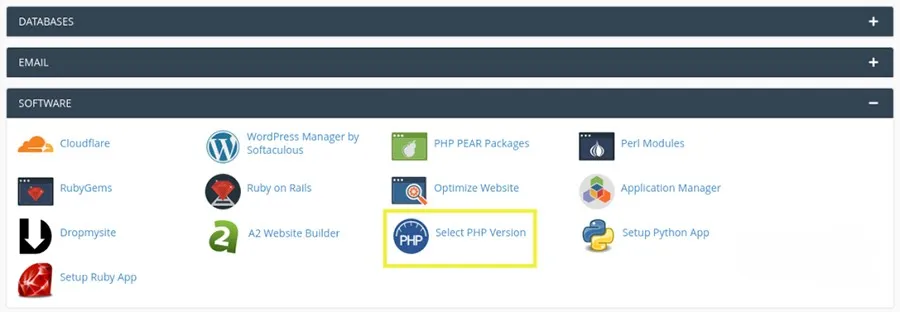
On the page that opens, select the PHP version and set the website to the latest PHP version by clicking the drop-down menu.
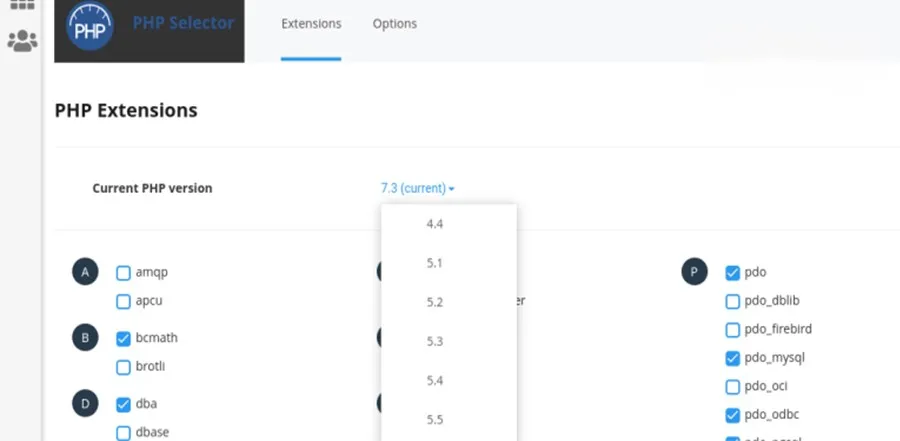
In general, upgrading the PHP version varies depending on the hosting you are using. For this purpose, we recommend that you check with your hosting support to confirm the PHP version.
Note: Although memory capacity limitation is not the reason for this type of WordPress error, it can create limitations for you. To fix the PHP memory limit, use File Manager via FTP and open the wp-config.php file in the WP-config.php folder. Now search for the following code:
define(‘WP_MEMORY_LIMIT’, ’32M’);
Now you can increase the 32M value to 128M capacity:
define(‘WP_MEMORY_LIMIT’, ‘128M’);
Thus, you have successfully increased the PHP capacity in WordPress.
Step 6: Restore the website backup
Regular website backups are like finding water in the desert. If you have recently added code to your website or made changes, having the latest backup is like finding water in the desert for a website administrator. This is especially true for programmers; therefore, when choosing a host, be sure to select one with regular backups.
Restoring a backup returns your website to its state before the changes were made. To restore a backup, you have two options: do it manually or contact your website hosting support.
Step 7: Enable WordPress Debug Mode
If the problem is not resolved by this point, try enabling debug mode in WordPress to fix the “A critical error has occurred on your site” message. WordPress debug mode will help you diagnose the problem. To enable it, you need to edit the wp-config.php file. Once enabled, it will tell you the source of the problem.
To edit the file, log in to your hosting panel, open the File Manager, navigate to the Public_html folder, and open wp-config.php.
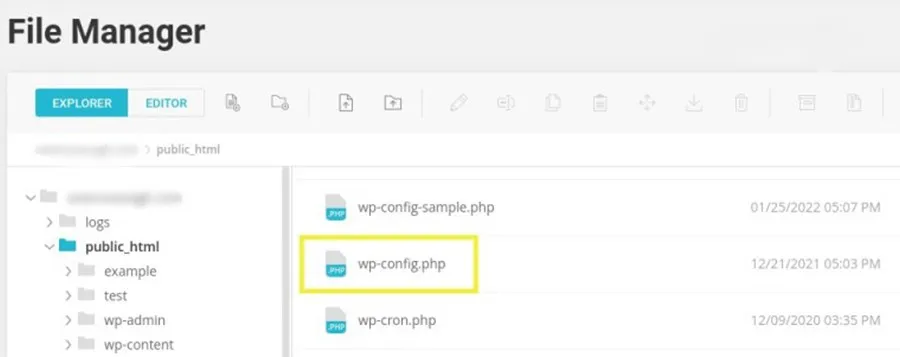
Then, place the following code before “/* That’s all, stop editing! Happy blogging. */”:
 define(‘WP_DEBUG’, true);
define(‘WP_DEBUG_LOG’, true);
define( ‘WP_DEBUG_DISPLAY’, false );
After applying the changes, save them and go back to the website and refresh it. To fix the “A fatal error has occurred on your website” issue, go back to the WP-content directory through the file manager and view the Log file. Look for a line that starts with the message PHP Fatal Error. For example:
PHP Fatal error: Cannot redeclarebp_members_screen_display_profile() (previously declared in /.../buddypress/bp-members/screens/profile.php:22) in /.../buddypress/bp-members/screens/profile.php on line 32
This code will show us the path of the incompatible file or plugin. This way, you can identify the incompatible plugin, theme, or code.
Step 8: Check the WordPress Log File Activity Report
If none of the above methods works, to fix the “There Has Been a Critical Error on This Website” error, check your WordPress activity log. You can do this with the Jetpack plugin. Once you have installed and activated the Jetpack plugin, go to the Activity Log section of your website dashboard and view the recent logs.
It goes without saying that you can also do this through your hosting panel. Depending on your hosting type, access to this report varies. For more detailed information, it is best to contact your website hosting support team.
Step 9: Create a Staging Site
Enabling website test mode not only helps you troubleshoot the “there has been a critical error on this website” error, but also helps you test different modes without worrying about your website crashing.
There are several ways to create a test website. One way is through your website hosting service. Many web hosting providers include this feature in their services. You can enable it from your WordPress control panel or Tools.
To be on the safe side, before taking any action, it is best to inform your website support about the problem, “A critical error has occurred on this website”, via a ticket.
Conclusion
“A critical error has occurred on this website.” This is a common message that WordPress website owners have probably seen at least once. The good news is that you can easily fix the mentioned error. In this WordPress tutorial, we have introduced 9 effective ways to fix the “A critical error has occurred on this website” error. These methods are:
- Website email check
- Clearing the browser cache
- Finding an incompatible plugin
- Finding an incompatible template
- Install the latest version of PHP
- Restore website backup
- Enabling website debug mode
- Checking the Log File via Hosting
- Creating a Staging Site
Before taking any action, we recommend reporting the issue to your hosting company via a ticket. Having a hosting with effective support will help to resolve the issue quickly when such errors occur.
Frequently Asked Questions
1. When does a website encounter the message “A critical error has occurred on this website“?
You may encounter the aforementioned message when a technical problem occurs on your website, such as plugin and theme incompatibility or failure to update PHP.
2. How long does it take to fix the “A critical error has occurred on this website” problem?
Depending on the type and severity of the error, the problem may resolve itself within a few minutes or may require long-term follow-up and investigation.
3. How to fix the problem of “A critical error has occurred on this website”?
Checking the website’s email, checking the plugin and theme, installing the latest PHP version, restoring a backup, and enabling debug mode are some of the ways to fix this error.