
In this article, we will explore different ways to change the WordPress login page URL and learn about plugins that can help.
Changing the WordPress login page has long been a topic of interest for WordPress site administrators seeking to enhance their sites’ security. By changing the WordPress dashboard address and the WordPress login page, you should ensure that profiteers cannot harm your site. By changing the login page, you can make your site a little more personal and get out of the wp-login.php and wp-admin atmosphere. In this article, we will teach you how to change the WordPress login page address, with or without a plugin.
How to change the login page address of a WordPress site?
By default, the WordPress admin login link is www.yourdomain.com/wp-admin, which you can access by entering your website’s domain name and the phrase wp-admin. Hackers can log in to your site and access your information by knowing that the default WordPress login link is wp-admin or wp-login.
For this reason, we must observe this security point so that no one can easily enter the site administration section. Many plugins change the wp-admin address in WordPress, allowing you to change the login link to the administration section with a few clicks, but you can also do this without a plugin, as we explain in the following steps. So, as we said, you can generally change the login page address in two ways:
- Manually
- With plugin
Both of these methods are convenient. But be aware that the manual method is usually not recommended. Because this method requires making a series of changes to the .htaccess files and a few other main files. Therefore, if you do not have much coding knowledge, you may make incorrect changes to these files, which could damage the site. In the following, we will review both the manual and plugin methods for changing the WordPress login page address. But we still highly recommend that you use the plugin method.
How to change the WordPress login page without a plugin?
One of the most effective ways to increase WordPress security is to change the default login page URL (wp-login.php). You can do this manually by editing files in the public_html folder or by using security plugins. Plugins like Hide My WP and Zxeion not only hide the login URL, but also protect your site from various attacks.
If you are looking for a simple and secure method, WPS Hide Login is the best option, as it changes the login link without tampering with the WordPress core. Finally, lighter plugins like HC Custom WP-Admin URL and Rename wp-login.php are also quick and practical options for customizing the login URL to the dashboard.
First, log in to your website’s hosting control panel.
After logging in to public_html, look for a file named wp-login.php. This is the exact file that directs you to the WordPress admin, and we need to edit it so that our WordPress admin address points to the link we want.
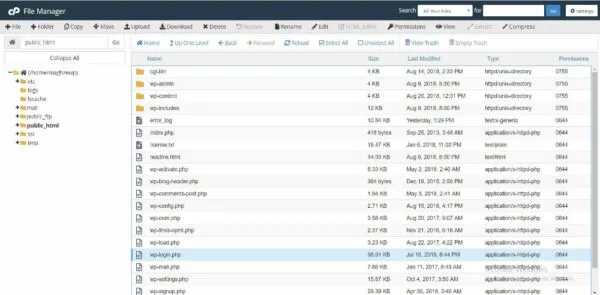
Rename the wp-login file.
Right-click the wp-login.php file, then select Rename. Then type in the name you want, the same as the login link to the admin section, and be sure to add the .php extension. The name you choose should be hard to guess and easy to remember.
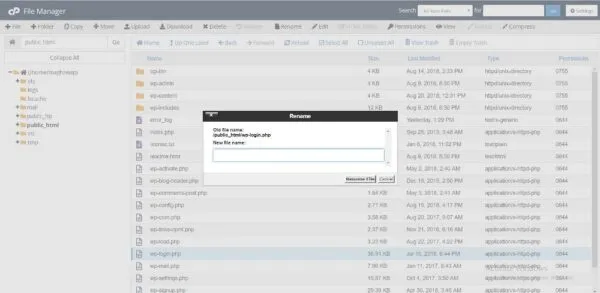
Now we need to go into the new file we created, yourname.php. Right-click on this file and click Edit to enter the code in this section. Now we need to replace all instances of wp-login.php with our own phrase, then click Save Changes.
After this step, we need to enter the wp-includes folder, open the general-template.php file, and in this section set all the wp-login.php expressions to our desired expressions, except for line 320, where we need to set the wp-login.php expression to index.php, and then save the file. Now, enter your domain + the new link name you created (domain.com/yourname.php) and log in to your WordPress administration area.
How to change the WordPress login page address with a plugin?
A safer and hassle-free way to change your login URL is to use WordPress plugins. There are many plugins available for this purpose. Below, we will introduce some of these plugins.
1- Hide My WP plugin

The Hide My WP plugin is a security plugin that enhances WordPress security, allowing you to hide that your site is WordPress from others. It is a great plugin for changing and hiding WordPress. This useful plugin can hide all the information that shows your use of the WordPress system from users. This plugin can also change all links to content, pages, uploaded files, and template CSS and JavaScript files to the desired address.
Features of the Hide My WP plugin
- Ability to hide the wp-login.php page
- Ability to hide the WP-Admin management page
- Ability to change the list of plugins and plugin names
- Change folder upload URL
- Disable your old, default WordPress URLs and replace them with new URLs
- Ability to change the default WordPress email sender
- Using a custom 404 page
- Change the address of content, pages, search, and more to a new or desired address
2- Zxeion plugin
Another Zxeion plugin: Best WordPress Security Plugins. It helps you change the address of your WordPress login page and hide it from hackers. Using the Zxeion plugin, you can prevent all attacks and threats.
Zxeion plugin features
- Protecting WordPress Configuration
- Securing WordPress
- Robot.txt file optimization
- Distinguishing robots from humans
- Protect hidden files
- Htaccess protection
- CMS data protection
- Protecting the PHP file
3- WPS Hide Login plugin
With the WPS Hide Login and WordPress Login Page URL Changer plugin, you can change the WordPress login page URL from wp-admin and wp-login and set it to your liking. In brute-force attacks, hackers automatically try hundreds of different username and password combinations until one is successful. There is a very high chance that your username or password will be found in one of these attempts.
If your WordPress login page is inaccessible to hackers, it can significantly enhance your WordPress site’s security. WPS Hide Login plugin. It does this for you. The most common and easiest way to change your WordPress login URL is to use the WPS Hide Login plugin, which has been used by over 400,000 users so far.
This powerful plugin does not modify any WordPress core files; it simply stops requests. It is also compatible with BuddyPress, bbPress, the Limit Login Attempts plugin, and user switching plugins. If you turn off the WPS Hide Login plugin, the WordPress admin login page will revert to the default yourdomainname/wp-admin.
4- HC Custom WP-Admin URL plugin
Using the plugin HC Custom WP-Admin URL, with over 20,000 active installations and a 3.3 rating, you can change the WordPress admin login address, namely, wp-admin and wp-login.php. After installing and activating this plugin, go to the WordPress settings and open the Permalinks menu to set your desired address for the login page in this plugin. After the changes are applied, exit the WordPress dashboard. If you visit the wp-admin and wp-login.php addresses, you will see that you will be redirected to the home page of the site.
5- Rename wp-login.php plugin
Rename wp-login.php is a very lightweight plugin that can easily and safely rename wp-login.php to anything you want, simply stopping page requests and working on any WordPress website. Rename the wp-login.php plugin. It is very useful for improving the security of your WordPress site, and this plugin is especially helpful for those looking to raise their site’s security level.
Step-by-step tutorial on changing the login page with the “WPS Hide Login” plugin
We introduced the “WPS Hide Login” plugin above. Now we are going to review how to change the WordPress login page address using this plugin in 5 steps.
1- Backing up the site
Always remember this: when you plan to make changes to your site, be sure to back up the site first. This way, you can rest assured that if the site crashes, you can restore your healthy site within minutes. The “WPS Hide Login” plugin is safe and reliable, and you’ll have no problems 99.9% of the time. But it never hurts to be safe. To back up your site, you can use plugins specifically for this purpose. For example, the Duplicator plugin creates an installation package of your entire site in a few minutes.
2- Install and activate the WPS Hide Login plugin
Now it’s time to go to the “WPS Hide Login” plugin. To find this plugin, go to “Plugins > Add”. Now you have access to the WordPress plugin repository. So in the plugin search box (which is at the top and left of this page), search for the phrase WPS Hide Login and then install and activate the following plugin:
3- Configuring the WPS Hide Login plugin
Now we come to the most important part of the job: configuring this plugin. When you activate the WPS Hide Login plugin in WordPress, it usually doesn’t open a new menu. So, you can access its settings in two ways:
1. Go to “Settings > WPS Hide Login”.
2. Go to “Add-ons > Installed Add-ons” and click on the “Settings” option in the add-on’s box.
In both methods, you will see a new section titled “WPS Hide Login” at the bottom of the page:
There are two things you can determine here:
1. Login address:
This will be the URL for your WordPress login page going forward. Use a unique, yet memorable, word for the login URL. For example, if your brand name is Acme, your new login page URL could be: “acme-login-page.”
2. Redirection URL:
The URL of the page that someone will be redirected to (i.e., automatically redirected from that old page to this new address) when they log in to the old page (i.e., wp-login or wp-admin).
For URL Redirection, you can do two things. First, enter the new URL so that anyone who visits that page is redirected to this new page. But, naturally, in this case, the security of your site will not increase, because the hacker will also be transferred to the new address.
So it’s better to do the second thing: enter the 404 page address in the Redirection URL field. This way, when the hacker enters that old address, he will see a 404 page (i.e., it will tell him that the page does not exist). Then you can give the new login page address to the administrators and writers yourself so that they can easily log in to the WordPress dashboard.
Note: Don’t forget to click the “Save Changes” option at the bottom of the page after making changes.
If everything goes well (which it usually does), after saving the changes, a message will appear at the top of the page saying that your login page will now be this page.
Step 4: Update your bookmarks
You probably have the WordPress login page bookmarked in your browser. Well, the address of this bookmark will not change on its own, and you will have to change it yourself. So, remove the old login page from the bookmarks and bookmark this new login page again. Also, in the previous step, we mentioned that if you are not redirecting users from the old page to the new one, you should provide the URL of the new login page yourself. At this point, make sure you have sent the URL of the new login page to all members of your site team (for example, you can email them the address just to be sure).
Step 5: Test the new login page URL
So, you are done changing the WP-Admin address in WordPress. Now you need to test this new login page to make sure everything went well. At this point, you need to log out of your WordPress dashboard and check two things:
- Check the old login page URL and see if it works.
- Check the new login page and see if it is correct.
What are the risks of changing the WP-Admin address in WordPress?
Overall, the benefits of changing your WordPress login page address outweigh the risks. Plus, even if the risks below do become a reality, there are ways to mitigate them. But it’s still a good idea to be aware of the potential risks.
Risk 1: Plugin failure
This problem can occur in rare cases if the plugin you are using to change the WordPress login page address is broken (or if there is any other problem during the installation process). In this case, the new login page will not be available. To avoid such problems, it is better to choose a reputable plugin from the start. Also, do some research to see if the plugin conflicts with any other plugins you already have on your WordPress site.
Risk 2: Forgetting the new login page URL
What if we change the login page address and forget the new login address? Or what should we do if, for some reason, the new login page does not work properly? Well, in that case, you will not be able to log in to your site. To avoid this problem, bookmark the new login page as soon as you change the WordPress login page address, and email yourself the new URL.
Important note:
In both cases above, you don’t need to worry about these risks. Why? We have two easy ways to fix the problem of forgetting your WordPress login address, which we will see in detail below. With these methods, whether the plugin is broken or you have forgotten the URL yourself, you can solve the problem in a few minutes.
Fixing the problem of forgetting your WordPress login address
If you don’t have the new login page for any reason, you can use one of the two methods below to restore it.
1. Use site backup
You can back up your site via an FTP client or reinstall it through the admin panel (cPanel or DirectAdmin). That is, delete all the previous files and install this backup file in their place. Of course, there are simpler ways to fix the problem of forgetting the WordPress login address, which we will see below.
2. By removing the WPS Hide Login plugin
The interesting thing about a plugin like WPS Hide Login is that if you remove it from WordPress, the changes it makes will be lost as well. To solve the problem of forgetting the WordPress login address, remove this plugin. But since we do not have access to our WordPress dashboard at the moment, how do we remove this plugin? By deleting this plugin folder from the main site files. As soon as you have installed and activated the WPS Hide Login plugin, a new folder named this plugin is created in the main files of your site in the public-html/wp-content/plugins path (like any other plugin).
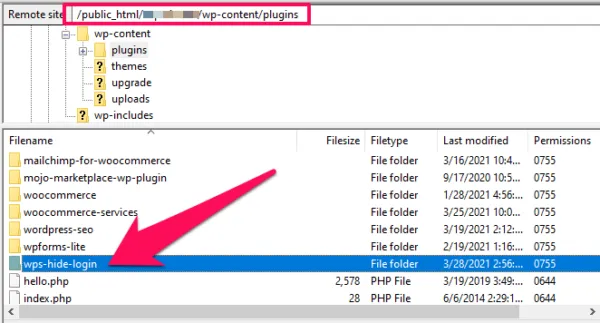
So first, go to your site’s main files via FTP client or through the admin panel. Then go to the path “public-html/wp-content/plugins”. Now, find the “wps-hide-login” folder here and delete it. Of course, instead of deleting it, you can rename the folder. If you delete the folder, this plugin will be removed from WordPress. But if you rename the folder, the plugin will remain installed in WordPress, but not activated. In both cases, the changes you made with this plugin will be canceled. Now go to one of the default login page addresses (wp-admin or wp-login). You will see that this page opens for you, and everything will be back to its previous state.
Note: You may have used another plugin for this instead of WPS Hide Login. In that case, look for the plugin folder and delete it (or rename the folder).
Remember the new WordPress login page address.
From this moment on, do not go to the old address to log in to your WordPress page, but go to the new address you have chosen. The login URL has changed; you must use the new address in the future. Note that immediately after you change the login URL to the WordPress admin panel, you will not be able to access the old address, and if you forget the new login URL, you will have to contact your host. The important point is that if you used a plugin to change the WordPress login page address, when you deactivate this plugin, your old login address will be considered as the WordPress login page again.
Why do we need to change the WordPress login page address?
Changing the WordPress admin login address is one of the WordPress security tips. WordPress security is a very important issue for all web admins and site administrators, and no site administrator wants anyone to enter the site without their permission. One way to prevent unauthorized access to the WordPress dashboard is to change the WordPress login page address. Currently, more than a third of websites worldwide use WordPress. So there is no doubt about the capabilities and power of this system.
But the thing is, this lovely system is also one of the most vulnerable systems out there. You might be surprised to know that in 2019, about 94% of hacked websites were WordPress! But wait: the way to prevent your site from being hacked isn’t to completely ban WordPress. Instead, use security techniques as much as possible. In this case, you can create a completely secure site with WordPress. The WordPress login page (by default) is the same everywhere in the world and is one of the following two addresses:
- com/wp-admin
- com/wp-login
So by default, the hacker knows what your WordPress login page is. So they go to that page, and all they have to do is guess your username and password. Unfortunately, research shows that most WordPress login passwords are very weak and easy to guess. According to this research, the most common passwords in 2019 were:
- 123456
- Picture1
- Password
- 111111
- 123123
- Qwerty
- abc123
Even if your password isn’t one of these, hackers still have techniques to find it. In addition, as the hacker visits this page and spends time on it, it consumes some of the site’s traffic and resources (since the login page is part of your site anyway). But we can build an additional security wall around our site with a simple method. This method sets the login address on the WordPress page to something other than the two above.
Article Summary: Changing the WordPress Login Page
In fact, WordPress Security is one of the key elements in site maintenance. As a site administrator, you should consider increasing your site’s security to protect it from attackers. In this article, we have provided a tutorial on changing the WordPress login address in simple language, and we also introduced a security plugin for this. We hope you can improve your site’s security by changing the WordPress login address.
Frequently Asked Questions
Why should I change the WordPress login page?
Increased security: Changing the frontend address makes it harder for hackers to penetrate your site. Improved user experience: If you use a custom frontend address, you can enhance your user experience. Hiding important information: By changing the frontend address, you can keep your username and password hidden from others.
What are the ways to change the WordPress login page?
Manual change: You can change the frontend address by editing the wp-config.php and functions.php files. Using a plugin: Many security and functionality plugins allow you to change the frontend address.
What plugins are suitable for changing the counter address?
To change the login address in WordPress, use the following plugins that offer features for customizing and configuring the login address: WP Hide Login, iThemes Security, and Cerber Security.