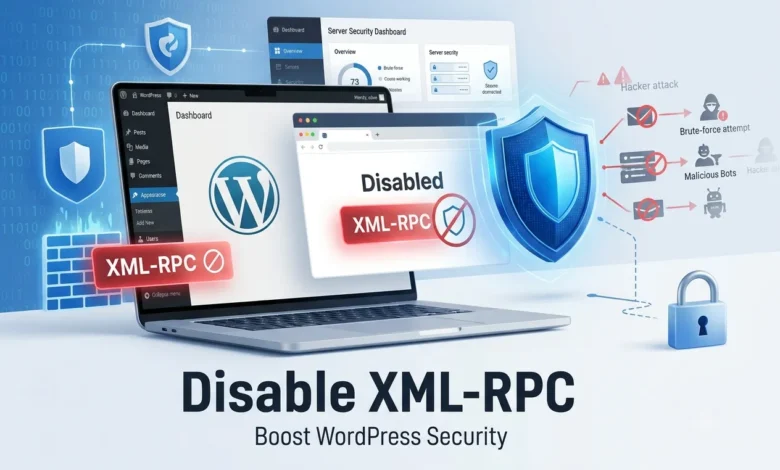
Sometimes you need to access your WordPress website, but your computer is unavailable. For a long time, the solution to this problem was a file called xmlrpc.php. XML-RPC was originally created to standardize communication between systems, enabling applications outside WordPress (such as other blogging platforms and desktop clients) to interact with WordPress.
But in recent years, this file has become more of a nuisance than a solution, creating vulnerabilities in your WordPress site, and has now been replaced by the WordPress REST API, which is much more useful. In the following, we will examine what xmlrpc.php is and why it was created. We will also review and address common security issues created on your WordPress site.
What is XML-RPC?
XML-RPC is a remote procedure call (RPC) protocol that uses XML to encode its calls and HTTP as the transport mechanism. Originally, XML-RPC was built in the early days of WordPress, when internet connections were slow and patchy at best. In essence, instead of actively writing new posts through the WordPress interface, posts were written asynchronously and offline, then uploaded to the server. PHP is a programming language that runs on the server machine.
WordPress XML-RPC is also an application programming interface (API) that enables data exchange between your WordPress website and other systems. Although it has now been largely replaced by WordPress’s REST API, it is still used for backward compatibility. This means that XML-RPC is suitable for websites that are still using older versions of WordPress.
If you are using an older version, we strongly recommend updating it. Running an older version of WordPress can cause more damage than just hackers attempting a brute-force attack via XML-RPC, compromising WordPress security.
ML-RPC is a WordPress feature that enables data transfer; HTTP serves as the transport mechanism and XML as the encoding mechanism. Since WordPress is not a closed system and occasionally needs to communicate with other systems, it was created for this purpose.
For example, suppose you want to post to your site from your mobile device because your computer is not nearby. For this purpose, you can use the remote access feature enabled by xmlrpc.php. The main features enabled by xmlrpc.php allow you to connect to your site from a smartphone and connect other sites to your site.
xmlrpc.php allows for remote connections to WordPress. Without it, various tools and publishing programs cannot access the website. Any updates or additions to the website must be made directly while logged in.
What is XML-RPC and how does it work?
As mentioned earlier, XML-RPC is a feature that allows WordPress to communicate with other systems. XML-RPC predates WordPress and was used in the blogging software b2, which was ported to WordPress in 2003. The code behind the system is stored in a file called xmlrpc.php in the site’s root directory, and it still exists even though XML-RPC is largely obsolete.
In early versions of WordPress, XML-RPC was turned off by default. However, since version 3.5, it has been enabled by default. The main reason for this was to allow the WordPress mobile app to sync with your WordPress installation.
If you used the WordPress mobile app before version 3.5, you may have needed to enable XML-RPC on your site so the app could send content. This was because the WordPress app did not run on mobile. Instead, it is a separate app that communicates with your WordPress site using xmlrpc.php.
Since the REST API has been integrated into the WordPress core, the xmlrpc.php file is no longer used for this communication. Instead, the REST API is used to communicate with the WordPress mobile app, desktop clients, other blogging platforms, and other systems and services. The range of systems that the REST API can communicate with is much wider than xmlrpc.php. There is also much more flexibility.

Why should you disable xmlrpc.php?
The main reason to disable xmlrpc.php on your WordPress site is that it introduces security vulnerabilities and can be targeted by attackers. Now that XML-RPC is no longer needed for communication outside of WordPress, there is no reason to keep it enabled. That is why it is wise to be more secure by disabling it on your site.
Now the main question here is: if xmlrpc.php is a security vulnerability and no longer does anything, why hasn’t it been removed from WordPress altogether? The reason is that one of WordPress’s key features is backward compatibility. By disabling this feature, you eliminate the risk of external attacks. Although contributors to the platform attest that xmlrpc.php is as secure as any other core file on a WordPress-hosted website, disabling it gives people a sense of security.
The downside to removing this feature is that remote access to WordPress will no longer be possible. This will reduce some of the system’s functionality and versatility. Instead of posting blogs from another application automatically via remote access, any content and other changes will have to be made by logging in directly to WordPress. This can be a problem for those who like the idea of posting content directly from their mobile devices.
So in most cases, xmlrpc.php is only useful if you plan to use mobile apps or remote connections to publish content to your website. As mobile has become a common way to access the internet, many people are using remote apps to make it easier to develop their WordPress sites.
Developers have worked hard to fix the coding issues with this feature in the past. However, not everyone needs this ability. Many aspects of the system work very well and are easy to use on smartphones or tablets.
The biggest issues with XML-RPC are the security concerns that arise. These issues are not directly related to XML-RPC, but rather to how the file is used to enable a brute-force attack on your site. Sure, you can protect your site with super strong passwords and WordPress security plugins. There are two main weaknesses in XML-RPC that have been exploited in the past.
The first is using brute-force attacks to log in to your site. An attacker will try to access your site via xmlrpc.php using different username-password combinations. They can effectively use a single command to try hundreds of different passwords. This allows them to bypass security tools that would normally detect and prevent brute force attacks.
The second was taking sites offline via DDoS attacks. Hackers use WordPress’s pingback feature to instantly send pingbacks to thousands of sites. This feature in xmlrpc.php gives hackers an almost endless number of IP addresses to distribute the DDoS attack.
How can I tell if XML-RPC is enabled?
This seems to cause confusion sometimes. Remember that, by default, XMLRPC is enabled and will remain on your site after the WordPress installation is complete. So if you use any of the resources below to disable it, simply re-configure your settings or delete the code to re-enable it.
However, if you have XML-RPC (xmlrpc.php) enabled, it means you have the ability to run JetPack and create blog posts from mobile clients like the iPhone. There are several different ways to check if your XML-RPC is enabled.
To check if XML-RPC is enabled on your site, you can run it through a tool called XML-RPC Validator. Check your site with this tool; if you get an error message, it means you have not enabled XML-RPC. If you get a success message, you can disable and stop xmlrpc.php using one of the methods we will discuss below.
How to disable XML-RPC?
There are several ways to disable or mitigate the risk of this file, each with its own strengths and weaknesses. To see how to disable WordPress XML-RPC (xmlrpc.php), you can take a look at the following steps and choose the most appropriate one. Don’t forget to create a backup before taking any action.
Delete the file completely
In this method, you simply delete the xmlrpc.php file from the server. This is easily done via FTP or cPanel. Just go to the relevant file using the file browser menu or something else and delete it. The advantage of this method is that it is easy and fast to do. But once you delete the file, every time you get a WordPress update, you will have to log in again and re-upload the file. For this reason, this option is not recommended.
Disable via .htaccess.
Instead of deleting the file completely, as in option 1, you keep the file but prevent it from being accessed by any process. In effect, you are quarantining the file so it cannot be used against you. To begin with, block WordPress from making requests to xmlrpc.php. Open your .htaccess file. You may need to enable hidden files in your file manager or FTP client to find this file. Inside the .htaccess file, enter the following code:
# Block WordPress xmlrpc.php requests
<Files xmlrpc.php>
order deny, allow
deny from all
allow from xxx.xxx.xxx.xxx
</Files>
3. Disable via Functions.php in the WordPress theme file.
With this method, instead of deleting the file entirely or disabling it by editing the server key configuration file, you use a WordPress file. This method is great for hosts with limited access, and you can keep all your functionality in the WordPress directory tree. In this method, you add a filter to disable XMLRPC:
add_filter( ‘xmlrpc_enabled’, ‘__return_false’ );
Add a filter to disable X-Pingback in WordPress titles:
add_filter( ‘wp_headers’, ‘disable_x_pingback’ );
Set the function to disable:
function disable_x_pingback( $headers ) {
Setting headers:
unset( $headers[‘X-Pingback’] );
Return modified titles:
return $headers;
Full version of disabling XMLRPC:
add_filter( ‘xmlrpc_enabled’, ‘__return_false’ );
add_filter( ‘wp_headers’, ‘disable_x_pingback’ );
function disable_x_pingback( $headers ) { unset( $headers[‘X-Pingback’] ); return $headers; }
If you are using the default templates, edit the functions.php file, then update the template to apply your changes and remove the default ones.
Keep in mind that even with best practices, templates need to be used and updated regularly, so you should add your changes to the template so they are preserved when the original is updated. If you make a mistake in reverting the above, remove some of the punctuation when copying and pasting. If you want to disable individual posts/pages as well, add the following:
add_filter(‘pings_open’, ‘__return_false’, PHP_INT_MAX);
4. Disable via Functions.php in WordPress theme files.
In the WordPress documentation, if you want to disable XML-RPC functionality, you will find the xmlrpc_methods approach in WordPress functions. By using this approach, you completely remove WordPress’s ability to use XML-RPC, and there will be no way to access it anymore. In this method, a very simple approach can be followed:
add_filter(‘xmlrpc_methods’, function () { return [];
End code:
}, PHP_INT_MAX);
Full version of XMLRPC disabling code:
add_filter(‘xmlrpc_methods’, function () { return []; }, PHP_INT_MAX);
The main difference between methods 3 and 4 is that in method 4 you make inaccessible anywhere WordPress makes XML-RPC calls.
5. Disable via a WordPress plugin.
The plugin approach is always popular, including when you want to disable XML-RPC in WordPress. The thing about plugins is that sometimes they are updated, but sometimes they are not. If they are not updated, they can be a security risk. While you can find a number of plugins that disable xmlrpc.php from doing anything, there are some that only disable some of the functionality, or there are larger, more heavy-duty plugins that have many other security features at the same time.
Disable xmlrpc.php from your hosting provider.
Alternatively, some hosting providers disable xmlrpc.php if an attack is detected. For example, on some hosting providers, a piece of code is automatically added to the Nginx.config file when an attack via XML-RPC is detected:
location ~* ^/xmlrpc.php$ {return 403;}
This will cause a 403 error and stop the attack in its tracks. If you are doing this yourself, it is best to use one of the methods above. But before doing this, always contact your hosting provider first.
XML-RPC in Today’s World
In 2008, with WordPress version 2.6, there was an option to enable or disable XML-RPC. However, with the release of the WordPress iPhone app, XML-RPC support was enabled by default, and there was no option to turn it off in the settings. However, the performance of this file has declined significantly over time, and its overall size has decreased from 83 KB to 3 KB, so it is not as important as it used to be.
With the new WordPress API, one can expect XML-RPC to be completely removed. Today, this new API is still in the experimental stage and can only be enabled using a plugin. However, you can expect this API to be coded directly into the WordPress core in the future, largely eliminating the need for the xmlrpc.php file. While the new API is not perfect, it does provide a robust and reliable solution to the problem that xmlrpc.php created.
Overall, XML-RPC was a good solution to some of the problems that arose from remote publishing on your WordPress site. However, this feature created security vulnerabilities that proved very damaging to some WordPress site owners. To ensure the security of your site, it is best to disable xmlrpc.php entirely. Over time, we can expect the XML-RPC features to be integrated into the new WordPress API that will allow remote access and more without compromising security.
Conclusion
As mentioned in this article, XML-RPC has advantages and disadvantages and can pose many security risks for you. Choose any method that is suitable for you from the methods mentioned in this article and disable it. Keep in mind that if you are using a remote system to publish content to your site, you must enable this feature. Otherwise, you will not be able to communicate remotely through the system. If you disable this feature and find that some of your plugins or other tools no longer work, you will need to re-enable it to continue using them.