WordPress plugins help you add new features to your site and have a professional site. But sometimes, plugin conflicts, installing too many plugins, or poorly coded plugins can cause performance drops and slow down your site. Here are some ways to identify slow WordPress plugins.
While WordPress plugins can improve your site’s performance, they can also slow it down or even cause security issues. In this article, we will first introduce methods and tools to identify slow WordPress plugins, and then outline what to do after identifying them.
Important points when choosing a WordPress plugin
Prevention is always better than cure, so it is better to be careful when choosing plugins before installing them so that they do not cause problems for your site. Consider the following important points when choosing a WordPress plugin :
- Proper support
- Reading user comments about the plugin
- Number of downloads or purchases of that plugin
- Regularity of its updates
- Buy from reputable sites.
Ways to identify slow WordPress plugins
You may have heard that “ the more plugins you have installed, the slower your WordPress site will be, ” but this is not always true. The speed of your site also depends on the speed of the plugins you use. The code and the number of changes a plugin makes to the site affect its speed. You can use various methods to identify slow WordPress plugins; below, you will learn practical methods for doing so.
1. Disable plugins one by one
Deactivating plugins that are not optimized is one way to address slow WordPress performance. If the number of plugins installed on the site is not large, the easiest way to identify a slow plugin is to deactivate plugins one by one, re-examine the site, and check its loading speed. Deactivating plugins to identify slow WordPress plugins helps to understand the impact of each plugin on the site and its performance. This helps increase the site’s speed.
2. Using the Query Monitor plugin
Using the Query Monitor plugin, you can identify duplicate database queries, slow queries, specific functions, and PHP and HTTP errors. In addition, it shows page load speed, memory usage, etc. This tool provides a lot of data, which can make it a bit difficult to interpret. If you are working with PHP, HTML, CSS, etc., this is the best way to identify slow plugins.
- This plugin is free. First, install it from the WordPress repository, then click Queries > Query Monitor, as shown in the image.

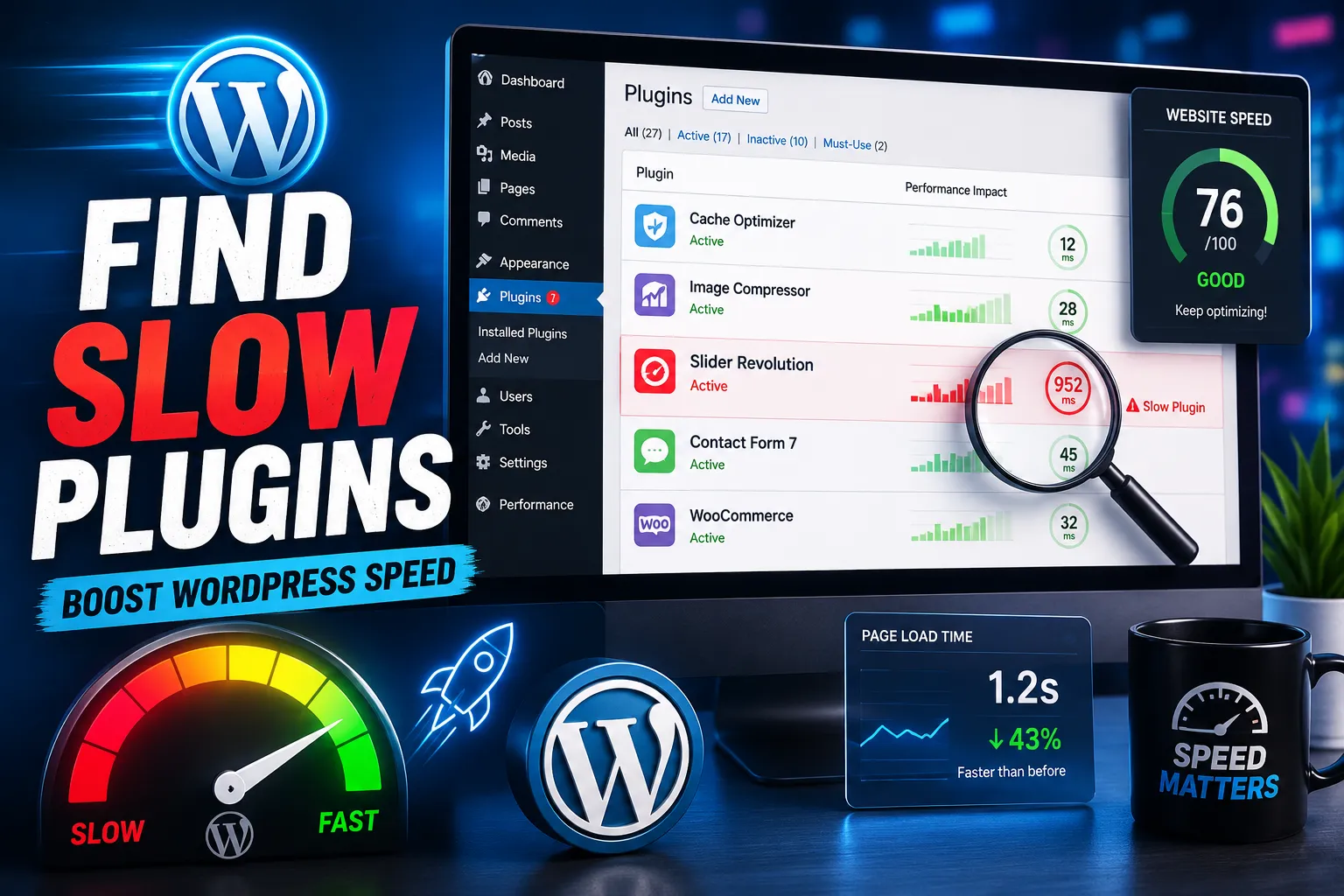
2. On the opened page, click Queries By Component and check the pages where different plugins are loaded.
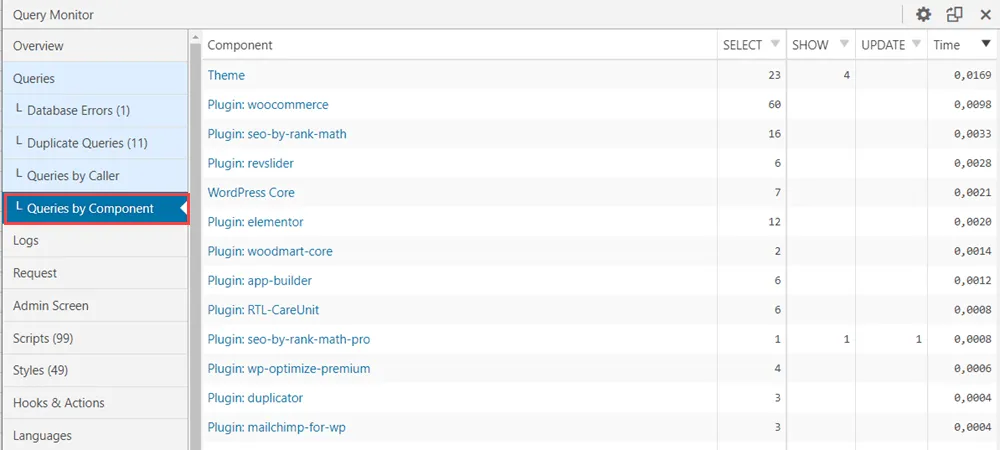
This way, you can identify the plugins that are slowing down your page loads. After you are done, you should remove the Query Monitor plugin because it runs continuously in the background, which slows down your site.
3. Use the WP Checkup tool
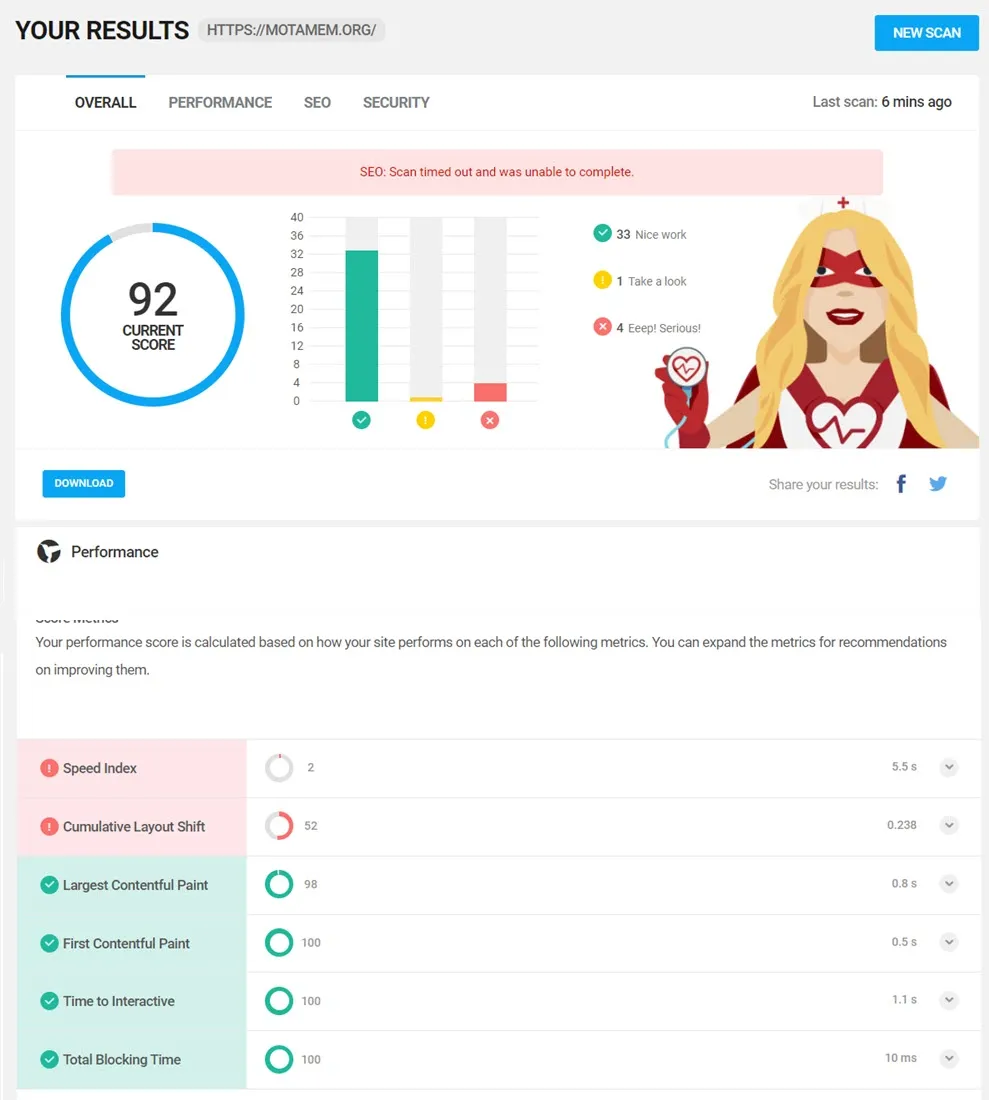
WP Checkup checks for site load time issues and also reports on site security and SEO issues. Follow these steps to use this site:
- First, log in to the WP Checkup tool site.
- Then enter your domain address and hit Scan to start scanning your site.
- At the end, you receive an overall score, along with a breakdown of the problems and the method for solving them.
If the tool shows a specific plugin as the source of the error, deactivate it. After you take the necessary steps, the WP Checkup tool should no longer show that error for the plugin in question. The image below shows the results that the tool displays.
4. Using a staging environment
If you are going to turn off plugins, it is better not to make changes on the main site that users are visiting. A staging environment helps you test your site safely and troubleshoot issues. Using this environment to troubleshoot your site is an efficient method. After running your site in this environment, you can turn off plugins without worrying about issues. After you have identified the problematic plugin and confirmed that there is no issue with your site, you can take the necessary measures on your main site.
To identify slow WordPress plugins, run the site in the Staging environment, then select and deactivate the plugins as shown. Then check in Query Monitor. If your site speed is normal and you find the problem is with the plugins, you can identify the problematic plugin causing the speed decrease.
Note: The ability to use the staging environment depends on your hosting type; you can ask your hosting support about this. If your hosting provider does not support staging environments, you can use plugins like WP Staging.5. Using New Relic APM monitoring software
New Relic APM is a monitoring tool that identifies performance issues on your site and helps you find their root causes. This tool analyzes CPU and memory usage, server errors and response times, and the time spent processing plugins, themes, and functions. It takes a little time to get used to this powerful software. Like the Query Monitor plugin, this tool also provides a simple graph and load time for each plugin, and lets you check the reason for slow site speed.
6. Use the WP Hive extension
WP Hive is a Chrome extension that shows which WordPress repository plugins are slow. Go to the Installed Plugins section in your WordPress dashboard and search for the plugin in question. If a plugin is slowing down your WordPress site, this tool will tell you whether it’s hogging memory.
7. Using the GTmetrix tool
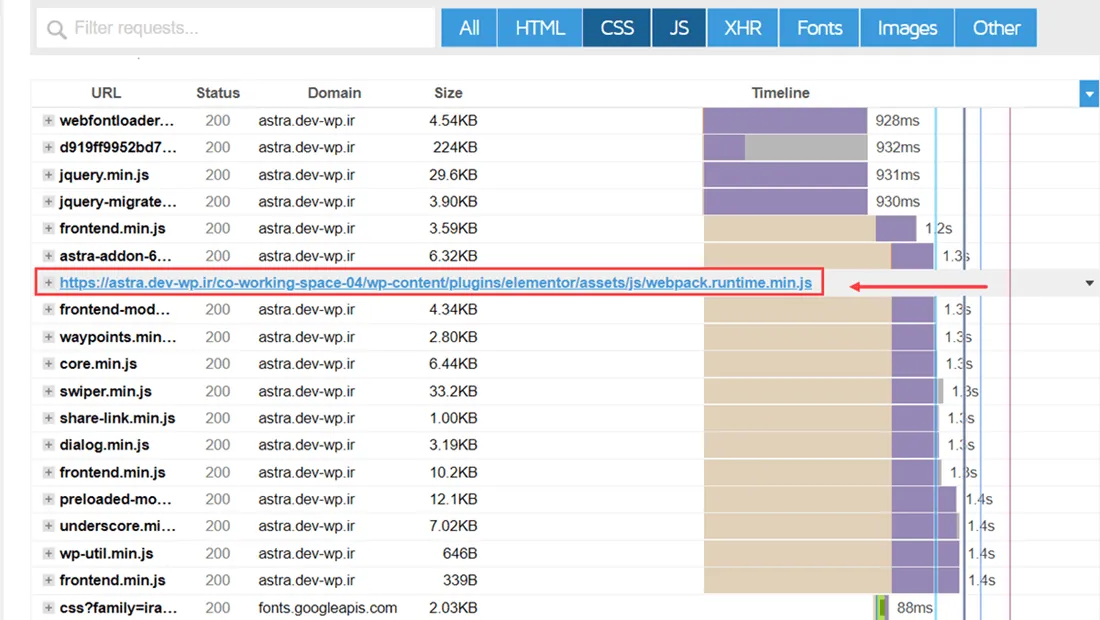
GTMetrics is one of the best website speed-testing tools for checking your website’s speed and performance. Its reports include details on the number of HTTP requests, the time to load pages, files, images, and scripts. Although it doesn’t specifically identify slow plugins, you can identify plugins that slow down your page load by analyzing its data. GTMetrics uses a set of metrics to give your website a performance score.
To check for slow plugins in the Waterfall tab of GTMetrics, select the CSS and JS sections to display, then hover over the lines to see which plugin is affecting your site speed.
✔️ Necessary actions after identifying slow WordPress plugins
After learning how to identify slow WordPress plugins, follow these steps.
- Disable the plugins causing the slowdown, then replace them with equivalent plugins.
- Deactivate and remove unused plugins even if they don’t affect your site speed.
- After installation, configure your plugins to disable any additional features enabled by default.
- Update your WordPress theme and plugins on time.
In this article, we introduced tools and plugins to identify slow WordPress plugins, and summarized the necessary steps to identify which plugins are slowing down the site. If you have used another method, we would be happy to suggest it in the comments. In our WordPress training course, we discussed important issues and techniques that every WordPress expert has learned after several years of experience, and you can learn them in the shortest time and launch your website.