
Enabling two-factor authentication in WordPress is like installing a smart lock on your site to prevent unauthorized access. So that even if a hacker finds your password, you still need to authenticate to log in fully. In other words, enabling this feature is like a warning alarm that prevents hackers from accessing your account. Just like the one-time passwords you use for bank transfers. In this article from the WordPress Followtechnologies tutorial, we will step by step examine how to enable two-factor authentication in WordPress. If the security of your site users is important to you, stay with us until the end.
What is two-step authentication?
Two-factor authentication (2FA) is an advanced security method that significantly increases the security of your website. With 2FA, in addition to a username and password, a verification code is sent to the website for login. This verification code is usually sent via SMS or an authenticator app to verify a user’s identity.
The function of this protective layer is as follows:
1. First, you enter your username and password on the WordPress login page.
2. Then, to complete the login, you need to confirm your identity via SMS, email, or an authentication app.
By using two-factor authentication, your account will remain secure even if your password is hacked. Enable two-step authentication now to protect your account.
Enabling two-factor authentication in WordPress is like putting a bulletproof vest on your site. It prevents unauthorized access to your site.
How to enable two-factor authentication in WordPress
Two-factor authentication is a strong barrier against hackers, preventing them from logging into your account. In other words, you need to verify your identity twice to log in. It’s that simple! Here are the methods to enable two-factor authentication in WordPress:
- Using SMS service
- Using a plugin like WP 2FA
- Using authentication apps like Google Authenticator
How to enable two-factor authentication in WordPress
In the previous parts of the article “Enable Two-Step Authentication in WordPress”, we examined the importance of this task and the methods of enabling it. In this section, we will teach you how to enable two-step authentication in WordPress via the application and SMS. By doing this, your users will also have peace of mind about your site’s security.
Enable two-step authentication in WordPress with the WP 2FA plugin.
If you are planning to use a dedicated WordPress two-factor authentication plugin, the WP 2FA plugin makes it easy for you. To use it, follow these steps:
Step 1: Install and activate the WP 2FA plugin
Just search for its name through the plugin repository.
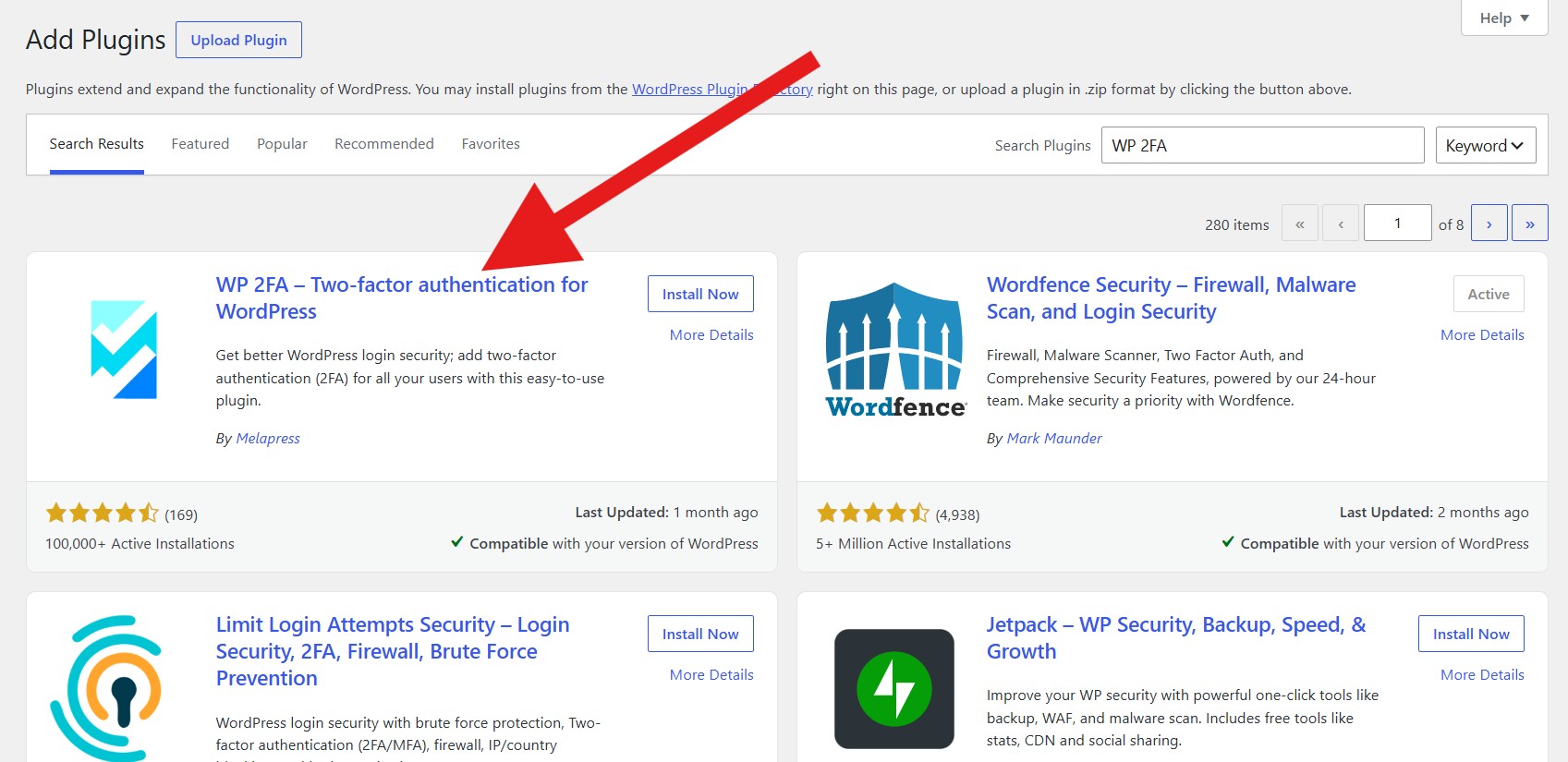
How to install WP 2FA in WordPress to enable authentication
Step 2: Select the user authentication method
Once the WP 2FA plugin is activated, the WordPress Two-Factor Authentication Configuration Guide will automatically launch on your page. Click the blue “Let’s get started” button to get started.
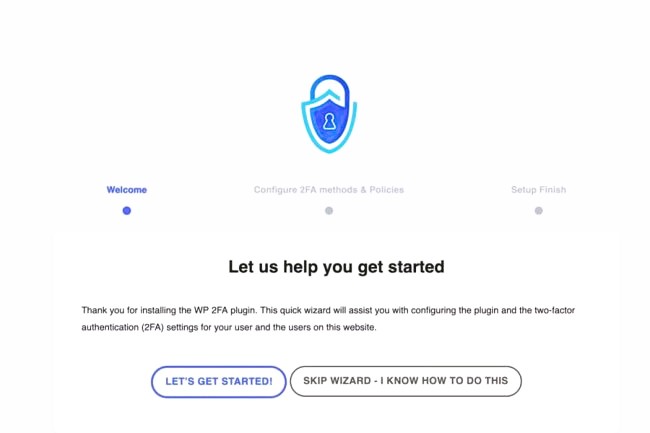
Select user authentication type.
Now you can choose the authentication method you want for your users. You have two options for adding authentication in WordPress:
- Using an app like Google Authenticator or Authy
- Send code by email. In this case, WP 2FA recommends by default that you enable the WP Mail SMTP plugin to improve the delivery of emails sent by WordPress.
To provide these two options to your users, check both boxes. Otherwise, uncheck them. Click “Continue Setup” to continue configuration.
Then, on the next page, you can choose to send a one-time recovery code. In this case, if the previous authentication method (via app or email) does not work, the authentication code will be sent to users. To select this option, check the “Backup codes” box and then click “Continue Setup.”
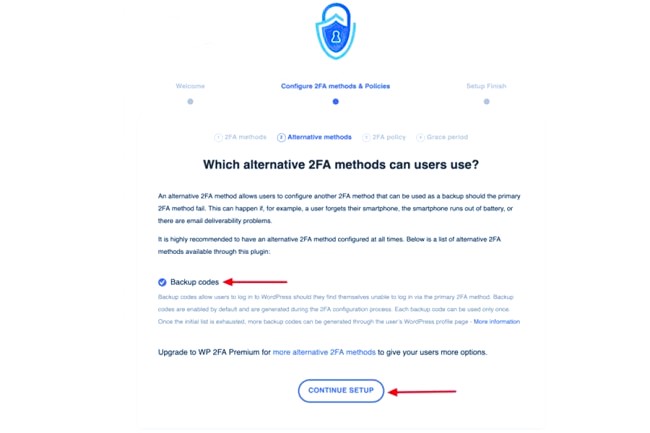
Select the Backup codes option to send the recovery code.
Step 3: Define user roles
In the third step of enabling two-factor authentication in WordPress, choose who will be included in two-factor authentication on your WordPress site. You have three options:
- All users, except admins and regular users
- Specific users you specify
- None of the users
Proceed to the next step by clicking “Continue Setup.”
Step 4: Specify the period for which two-factor authentication is active.
If you want to enable authentication for your users, you can set a time limit for it. This means that if users fail to authenticate within the next 15 minutes, they will not be able to log in to the site. Using the WP 2FA plugin, you can:
- Require users to enable two-factor authentication.
- Define a specific period for authentication confirmation, in days or hours.
If users do not take action within the delay period, you can configure WordPress authentication settings so that they cannot access their dashboard, user page, or account, or so that their account is blocked.
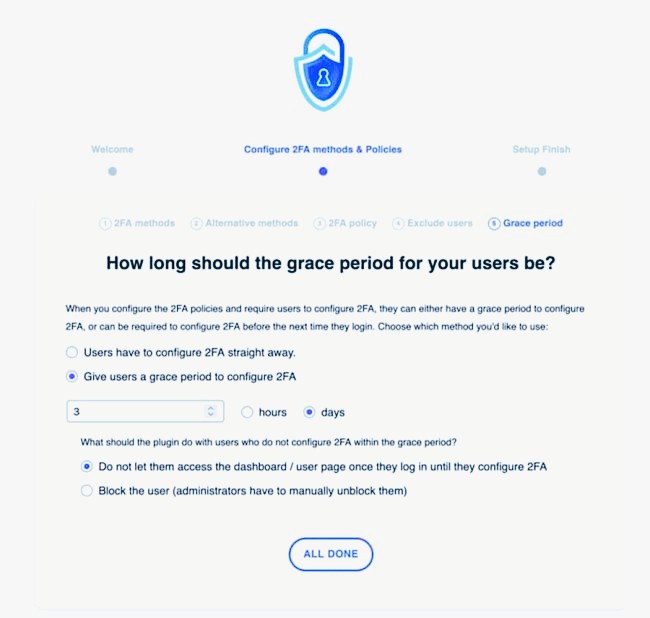
Blocking user accounts if authentication is not possible
Step 5: Set up two-step login for WordPress
The WP2FA plugin offers several authentication methods. You can choose how users should be authenticated from among them. To do this, click on the “Configure 2FA Now” option.
1. Authentication via the app
This is one of the most popular two-step authentication methods for WordPress. It involves sending you a one-time code via an authenticator app like Google Authenticator, which you must enter when logging in to your site.
2. Authentication via email
In this method of adding authentication to WordPress, a code will be sent to your email address, which you must enter when logging in to the site. We recommend that you choose the same authentication method through the application. This is secure, convenient, and less complex than other methods. Finally, click on the “Next Step” option.
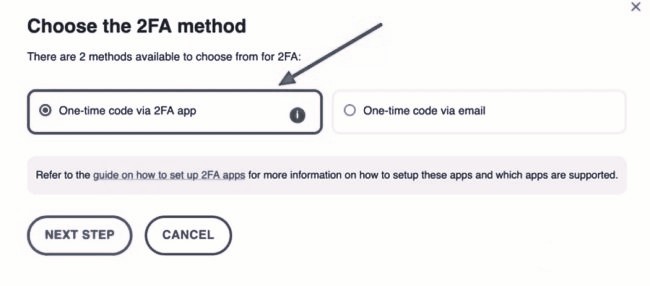
Send a code via email for authentication.
Step 6: Set the authentication code
At this point, you need to specify an application to receive the authentication code using the two-factor authentication activation program in WordPress. WP 2FA is compatible with the following applications:
- Duo
- Okta
- Authy
- FreeOTP
- LastPass
- Google Authenticator
- Microsoft Authenticator
In this article, we will teach you how to enable two-factor authentication in WordPress using the Google Authenticator app. This method is one of the most reliable ways to protect your WordPress site from attacks. Just download and install this app on your phone and follow the steps below.
- Open the Google Authenticator app on your smartphone.
- Click the “+” button, then select the “Scan QR code“ option.
- Scan the QR code on your user page provided by the WP 2FA plugin.
- Once the QR code is scanned, tap the “I’m ready“ button.
- Enter the verification code you received from the app and click the “Validate & Save“ button.
In this section, a list of backup codes will appear. By clicking on “Generate List of Backup Codes”, you can use these codes when you don’t have access to your mobile phone.
Step 7: It’s time to test the activation.
The final step in enabling two-factor authentication in WordPress is to test it to make sure it’s working properly. To do this, first log out of your WordPress admin interface. Then, go to the admin login page and enter your username and password as usual.
If everything works correctly, you’ll need to enter a one-time code generated by your authenticator app. This one-time code provides an extra layer of security for your login.
How to Disable Two-Step Authentication in WordPress
Turning off two-step verification is like leaving your house door unlocked. If for some reason you decide to turn off two-step authentication in your WordPress, you can do so by following the steps below.
1. Log in to your WordPress dashboard.
2. From the left menu, click Settings.
3. On the Settings page, click on the Security option.
4. In the Two-Step Verification section, click the Disable option.
5. On the next page, enter the verification code. This code was sent to the device you set up for two-step verification.
6. Click on the Disable option.
After turning off two-step authentication, you will only need to enter your username and password every time you want to log in to your website.
Conclusion
Enabling two-factor authentication in WordPress is like a four-locked door: you need to unlock all the locks to open it. In this article from Followtechnologies WordPress Training, we learned about the importance of enabling two-factor authentication and how to do it. We hope this article has helped you prevent unauthorized access to your site with this security method. If you need more guidance on enabling two-factor authentication in WordPress, write your questions in the comments section, and we will answer them as soon as possible.
Frequently Asked Questions
1. What is two-step or two-factor authentication?
Two-factor authentication (2FA) is an advanced security measure that helps protect your website from unauthorized access. With 2FA, in addition to your username and password, a verification code is sent to your device when you log in. This verification code is usually sent via text message or an authenticator app.
2. How do I enable two-factor authentication in WordPress?
To enable two-factor authentication in WordPress, you can use one of the following plugins:
- Authy
- Duo Security
- Google Authenticator
After installing one of these plugins, you can complete the activation steps through the plugin settings.
3. What if we don’t have access to the verification code?
If you don’t have access to your phone, you can use backup codes. You can get these codes from the two-step verification settings page.