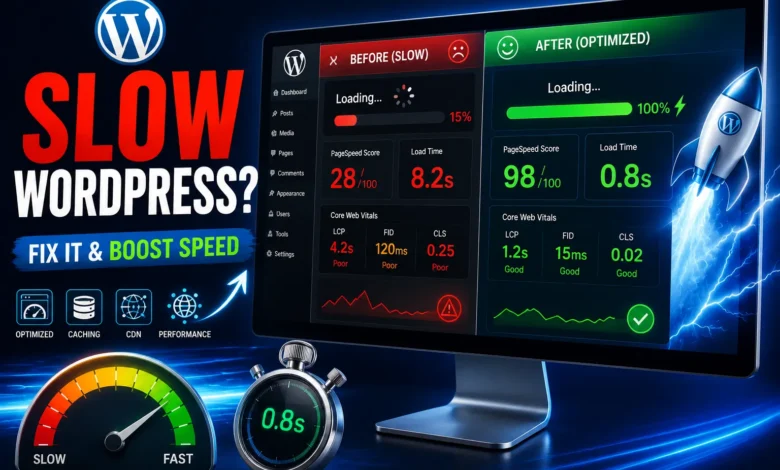
Slow WordPress performance is a serious issue that can affect any site, and you should address it. There are various reasons a WordPress site slows down, and following a few tips will help you improve your site’s speed, an important factor in user retention.
Site speed is very important to users; if your site is slow, they will leave before it loads, increasing your bounce rate. Site speed is also important for search engines and is considered an SEO factor. Research shows that a 1-second delay in site loading causes 11% fewer visits and a 16% decrease in customer satisfaction. If you are also looking to increase your site’s speed, the first step is to identify the reasons for the slowness, and the next is to fix slow WordPress.
What are the reasons for a slow WordPress site and its low speed?
In this section, we will answer three questions about why WordPress is slow. There are several reasons for slow internet speed. In this section, we will explain what happens when your site’s loading speed decreases.
🔸 Using a low PHP version
As you know, WordPress is written in PHP. Newer versions of PHP perform better and are more secure than earlier ones. Higher PHP processes more requests per second. Low PHP is one reason WordPress sites slow down. In the image below, you can see the number of requests responded to per second for different PHP versions.
As you can see, PHP 7 is about three times faster than version 5.6. In versions 7 and above, the higher the version, the more requests are processed. For example, version 7.3 is 10 percent faster than 7.2.
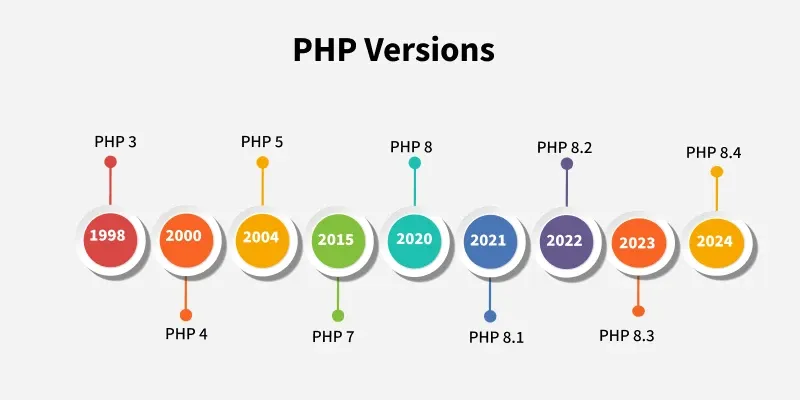
✔️ Solution: To solve the problem of slow WordPress, set your PHP version to at least 7.3.
🔸 High-resolution images
One of the factors affecting site speed is the use of high-quality images. High-quality images attract users but are not ideal for speed. Especially on mobile devices, speed is very important to users, and large images can slow down your site.
✔️ Solution: Large images slow down your site’s loading speed. To solve the problem of slow WordPress, there are plugins that you can use to reduce the size of images without losing quality, such as the WP Optimize Premium plugin and the WP Smush Pro plugin. By optimizing images, you will see significant improvements in site speed.
🔸 Disabling unnecessary WordPress dashboard widgets
If you are facing the problem of a slow WordPress dashboard, there are widgets in the dashboard that are usually unnecessary. For example, news and events that are displayed on the WordPress admin home page. Because this information is retrieved from another server, your WordPress dashboard slows down.
✔️ Solution: To solve the problem of slow WordPress, you can turn off widgets using plugins such as Widget Disable. After installing the plugin, it will appear in the display menu on the dashboard. Then, by clicking on it and the sidebar widgets tab, you can check and select any widget you want, then click Save Changes.
🔸 Unnecessary plugins
Plugins help add more features to your site, make it more customizable and user-friendly, and thus attract more traffic and a broader audience. However, overusing plugins is one of the reasons why your site loads slowly.
✔️ Solution: Deactivating plugins is one way to identify slow WordPress plugins. Deactivate unnecessary plugins and plugins that are slowing down your site if possible. If it is not possible to remove them, use alternative plugins. In fact, use plugins that do not affect site loading.
You can significantly improve your site by consistently updating it, removing unnecessary plugins, lazy-loading images, and more.
🔸 Loading unnecessary information on the home page
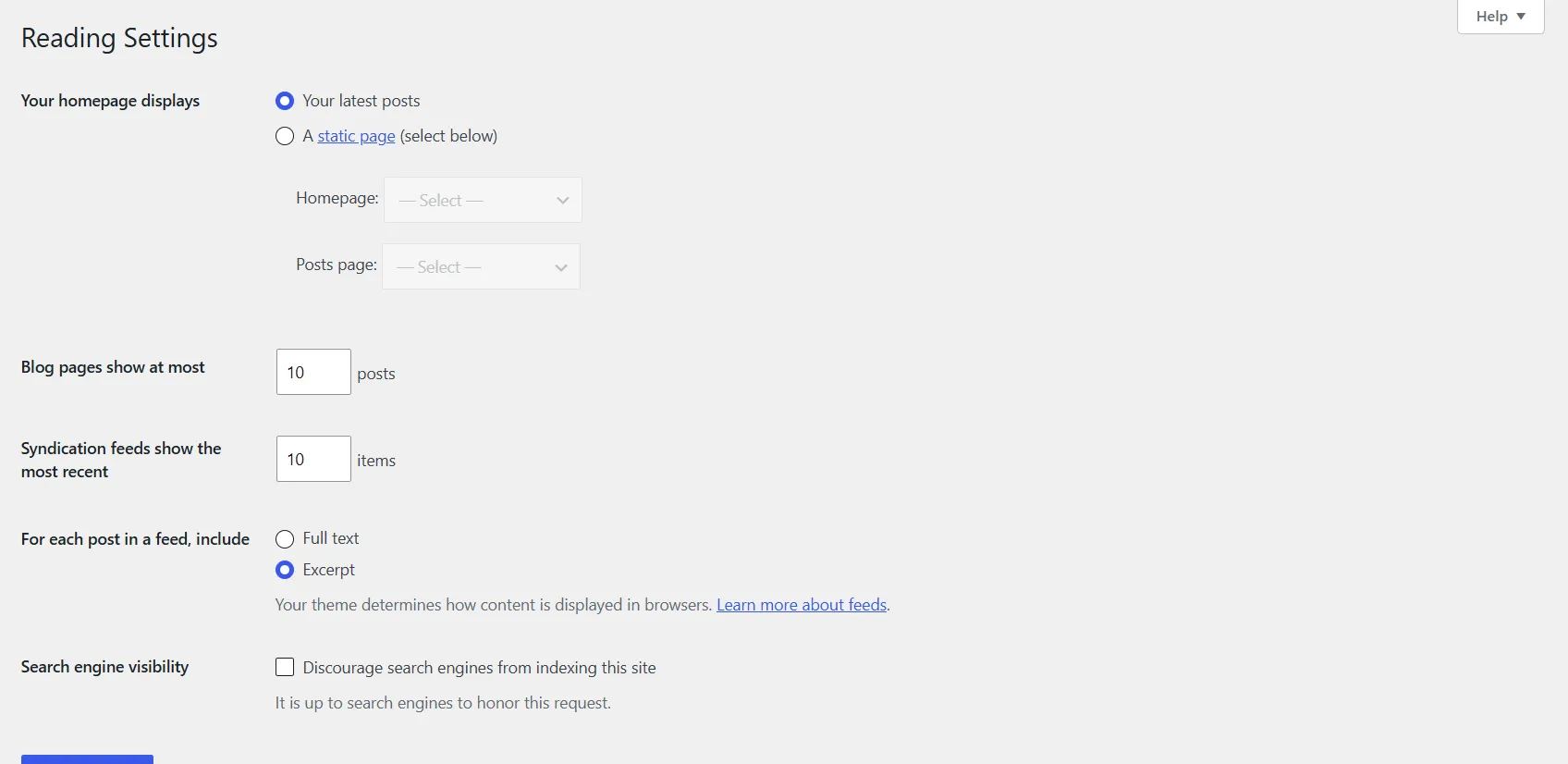
Avoid displaying unnecessary information, as it increases the homepage’s loading time. For example, the number of articles displayed on the homepage should be optimal, and users should be redirected to another tab to view additional articles. Loading unnecessary information is one of the reasons why WordPress sites slow down.
✔️ Solution: To solve the problem of WordPress being slow, in the WordPress dashboard, from the Settings > Reading menu, set the maximum number of posts per blog page to 10 and set the way posts are displayed to Summary.
🔸 Weak host
One reason a WordPress site is slow could be poor hosting. Of course, it could also be due to the distance between your server and the user’s server. For example, if you have an e-commerce site, slow speed will cause it to fail and lower your conversion rate.
✔️ Solution: If you are using free, cheap, and shared hosting, leave it aside and buy a strong and reliable hosting platform for your site to solve the problem of slow WordPress.
🔸 WordPress themes and plugins not updated
Using outdated plugins or themes can be one of the reasons for your slow speed. Outdated plugins may be incompatible with the new version of WordPress. In addition, an outdated version of WordPress can slow your site.
✔️ Solution: Set a regular schedule for updating plugins, themes, and WordPress.
🔸 Unnecessary and cluttered information in the database
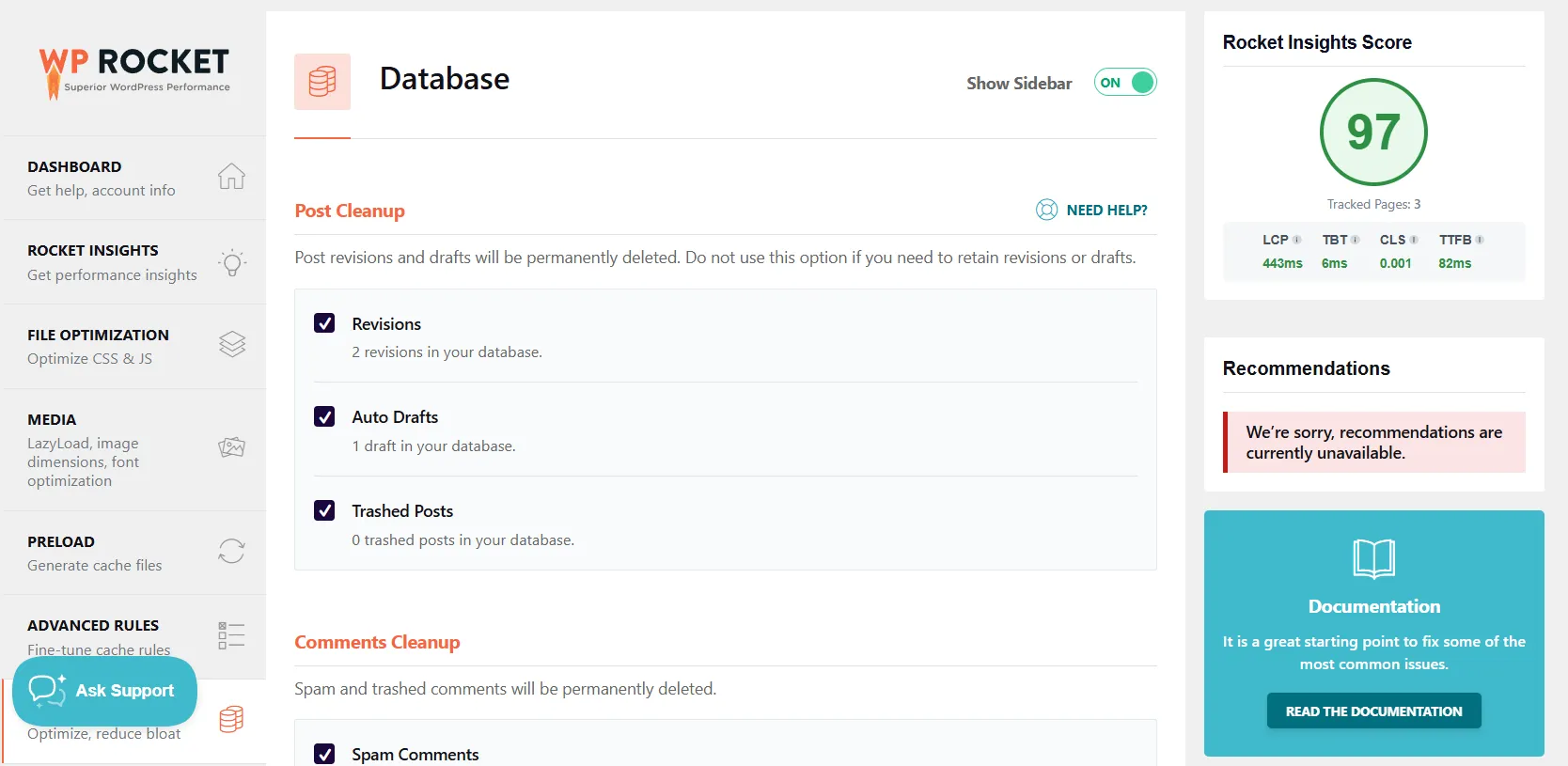
Unnecessary information takes up a lot of space, slows the site, and increases over time. Too much information is one of the reasons the site is slow. To solve the slow WordPress problem, you need to remove this unnecessary information.
✔️ Solution: You can delete this unnecessary information without worrying about it, which may also be expired, and this will not affect your site in any way. For this, you can use plugins like WP-Rocket, one of the best speed-boosting plugins. As shown in the image below, you can manage database cleanup from the database section of the Rocket plugin.
🔸 Not using page caching (cache plugins)
Site caching helps you serve a cached version of your website to repeat visitors. This means that fewer resources are used to display content. Not using cache can be one of the reasons why your WordPress site is slow.
✔️ Solution: To solve the problem of slow WordPress, it is essential to use a cache plugin for higher speed and to conserve site resources; for example, use the free Speed Lite plugin.
🔸 High number of posts displayed in articles and products
One way to prevent the WordPress dashboard from slowing down is to limit the number of posts displayed per page.
✔️ Solution: Limit the number of posts and products on a page; for example, if there are more than 20, reduce them. Go to the Pages (Posts) section and set the number of posts to at least 10 in the page settings, as shown below.
🔸 Not using CDN (Content Distribution Network)
A content distribution network, or CDN, is a network of servers connected around the world. If you use a CDN, all your data is stored on these servers, which increases your speed. Not using a CDN will slow down your site.
✔️ Solution: To solve the problem of slow WordPress, use a CDN such as Cloudflare and distribute your content across servers. Users receive responses from the server closest to them.
🔸 Presence of hidden malware
According to research, 50% of mobile malware is hidden. Malware can remain hidden on WordPress sites for days or weeks, consuming server resources and bandwidth, which can be one of the reasons why a WordPress site slows down.
✔️ Solution: Before installing a plugin, make sure it is optimized, and do not use nulled and free plugins, as these plugins may add hidden malware to your site.
🔸 WordPress template code is not optimized (excessive use of CSS and JavaScript)
CSS helps you give your site a more attractive look by controlling layouts, fonts, and effects. JavaScript is also used for user interaction and for embedding animations, audio, and video. Using too much of it can make your site take a few seconds to load.
✔️ Solution: If you are using a theme that is not optimized for fast loading, try changing your site theme to a lightweight theme to solve the problem of slow WordPress. Reduce the number of installed themes on your site.
Another solution is to use plugins like WP Rocket, which can optimize and minimize these files. As shown, you can reduce these files in the file optimization tab.
🔸 Large number of video and audio files
Including video and images increases your user engagement, encourages users to stay on your site longer, and increases your bounce rate. However, video and audio files can slow down page load time.
✔️ Solution: To solve the problem of slow WordPress, use optimized and small-sized videos whenever possible and upload all your videos to your own hosting.
🔸 404 errors
The absence of pages or files that are called up in a site’s content is one of the factors that slow down your site. If the link to the file is on the page and the file itself does not exist, it will slow your page load.
✔️ Solution: One way to fix this error is to use the Yoast SEO plugin.
🔸 Render-Blocking resources such as scripts, stylesheets, and HTML
Files like JavaScript make your website pages dynamic and lively, but they need to be optimized. Otherwise, they will cause the browser to show your page to the user with a delay. For example, the first display of website content such as background colors, text, images, etc. may be delayed, and the time it takes to display the first content is called FCP. Excessive resources can cause WordPress to slow down.
✔️ Solution: Reduce the size of these files with speed-boosting plugins like WP Rocket. Optimizing blocking resources speeds page load and is an effective way to improve FCP.
Note: Using Elementor on a poorly configured site can slow it down. You can optimize your Elementor site with solutions to increase Elementor speed.What is the general solution to solve the problem of slow WordPress?
In this section, we will provide general solutions to improve slow site performance without considering the underlying cause.
✔️ Using the GTMetrics tool
Using tools like GTmetrix, you can check your site speed and resolve issues by analyzing the metrics it provides.
✔️ Compressing the entire site content
You can use Gzip to compress any content. Reducing the size of your pages will free up bandwidth. There are two ways to enable Gzip in WordPress :
1. Add code in htaccess
Add the following code to the htaccess file.
#Gzip
<ifmodule mod_deflate.c>
AddOutputFilterByType DEFLATE text/text text/html text/plain text/xml text/css application/x-javascript application/javascript
</ifmodule>
#End Gzip
2. Using a plugin
You can enable Gzip for your site using plugins like WP Rocket. These methods will help you reduce the space your database and hosting use.
Note: Be careful when using site speed plugins, as they may slow your page load. In the speed plugin settings, you can specify that CSS and JavaScript are loaded with a delay, which can make your site pages appear cluttered.In this article, we first examined the reasons for slow sites and explained why WordPress sites are slow; then we looked at solutions to the problem of slow WordPress sites and explained the factors that may cause page-loading delays. Then we looked at fixing the slow WordPress problem. I hope this article was useful for you.