All internet users want websites to load quickly and have a smooth, lag-free experience. Google, as the largest and most popular search engine, has recognized this need and introduced site speed as an important ranking factor in SEO. On the other hand, WordPress is the most popular content management system in the world and the first choice of many web admins for its flexibility and countless plugins. However, adding various features, heavy templates, and failing to follow optimization principles can lead to a slow site.
Increasing the speed of a WordPress website not only improves the user experience but also directly impacts SEO and site ranking in Google. In this article from the WordPress training section of FollowTechnologies, we will comprehensively and professionally examine practical methods to increase WordPress speed and its counter, and introduce a few practical plugins to optimize site speed so your website loads as quickly as possible.
Why is website speed important?
Website speed is one of the most important factors for a website’s success in the digital world, as it directly impacts the user experience. Today’s users are impatient and will leave a site if it takes more than a few seconds to load and move on to a competitor. In addition, search engines like Google consider speed a key factor in website ranking (SEO); therefore, a slow site not only drives away potential customers but also misses the chance of appearing in the top Google results.
Ways to speed up your WordPress site
In this section, we will go through the best ways to optimize WordPress performance and address slow performance step by step. By implementing these techniques, you will see a significant improvement in page load times.
1. Optimize Core Web Vitals
Core Web Vitals is a set of standard Google metrics for measuring the user experience of web pages. These metrics include three main components: LCP (Largest Contentful Paint, which measures loading speed), FID (First Input Delay, which measures interactivity), and CLS (Cumulative Layout Shift, which measures visual consistency). To increase the loading speed of your WordPress site, you need to improve the scores of these three metrics by compressing files, optimizing the server, and removing render-blocking code so that Google recognizes your site as fast and user-friendly.
2. Use CDN
When a user tries to access your website from a location far from the server, the distance between the user and the server can increase the time it takes to connect and load the website. Using a CDN, or content delivery network, can help increase website access speed.
Simply put, a CDN is a network of servers located around the world. Each server is responsible for storing your website’s static files; therefore, using a CDN allows users to download static content from the server closest to them. Among the tools for working with CDN are the ParsePack CDN service and the Cloudflare service, both of which make CDN use available to you for free.
3. Optimize images
Images often take up the most space on a web page, and optimizing them is a key step. To do this, use modern, lightweight formats like WebP and AVIF instead of older formats like JPEG or PNG, which offer the same quality at a much smaller size. Also, enable Lazy Load to load images only when the user scrolls to that part of the page, which can significantly reduce initial site load times.
4. Use optimized plugins
Plugins add incredible features to WordPress, but using unwritten plugins or installing too many unnecessary plugins can be a real pain in the ass. Always try to use reputable, lightweight, and optimized plugins. Identify plugins that inject extra code into your site’s header and footer, and if possible, replace them with lighter alternatives or limit them to prevent your WordPress dashboard from slowing down.
5. Keep WordPress, Themes, and Plugins Updated
WordPress, theme, and plugin developers are constantly releasing updates to fix bugs, improve security, and increase speed. Using outdated versions can cause code conflicts and slow down your site’s overall performance. Therefore, always update your WordPress core, active theme, and all installed plugins to the latest available versions to keep your site running at its best.
6. Replace cron jobs with cron hosts to increase speed
WordPress uses a system called WP-Cron to run scheduled tasks like publishing future posts, checking for updates, and taking backups. Running these cron jobs on every user visit can overload the server and slow down your site.
The best solution is to turn off the default WordPress WP-Cron and instead use real server-level cron jobs (cron hosts) to run these tasks at specific times, regardless of user traffic. This method is especially recommended for WooCommerce sites with many products or orders. To disable wp-cron, you can add the following code at the end of your wp-config.php file:
define('DISABLE_WP_CRON', true)
To run the host cron job on a schedule (e.g., every 15 minutes) and all scheduled WordPress and plugin tasks (scheduled post publishing, clearing caches, sending emails, and backups) without slowing down the counter, add the following command in the hosting management section and the cron job section:
/home/USERNAME/public_html/wp-cron.php
Suggested schedule for running crons:
| Site type | Run time |
|---|---|
| Regular site | Every 15 minutes |
| WooCommerce Medium | Every 5 minutes |
| WooCommerce Heavy | Every 1 minute |
7. Use the article summary feature
By default, WordPress displays the full content of articles on the homepage and article archive pages. This will slow down the loading of your website’s content because your visitors may not need to read all the information in the article right away.
To fix this problem, you can configure your website to display only excerpts of the article rather than the full content. To do this, go to Settings > Reading from the side menu of your WordPress dashboard. This path is shown in the image below:
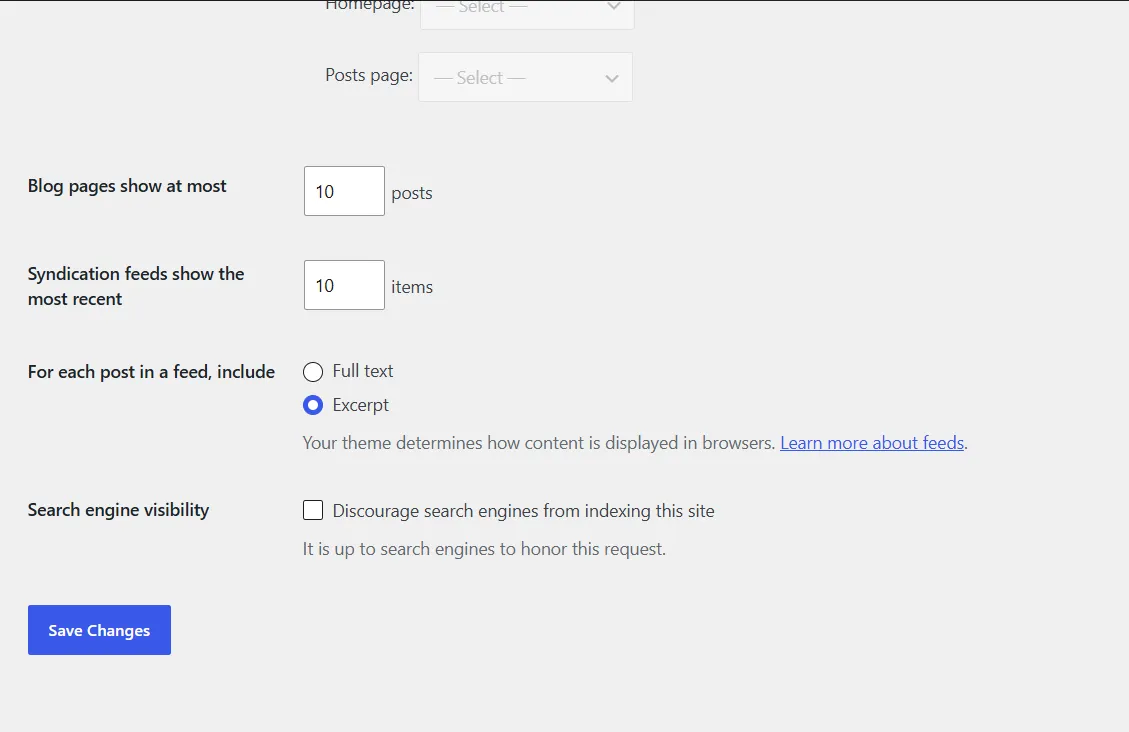
On this page, set the For each article in a feed, show option to Summary.
8. Comment segmentation
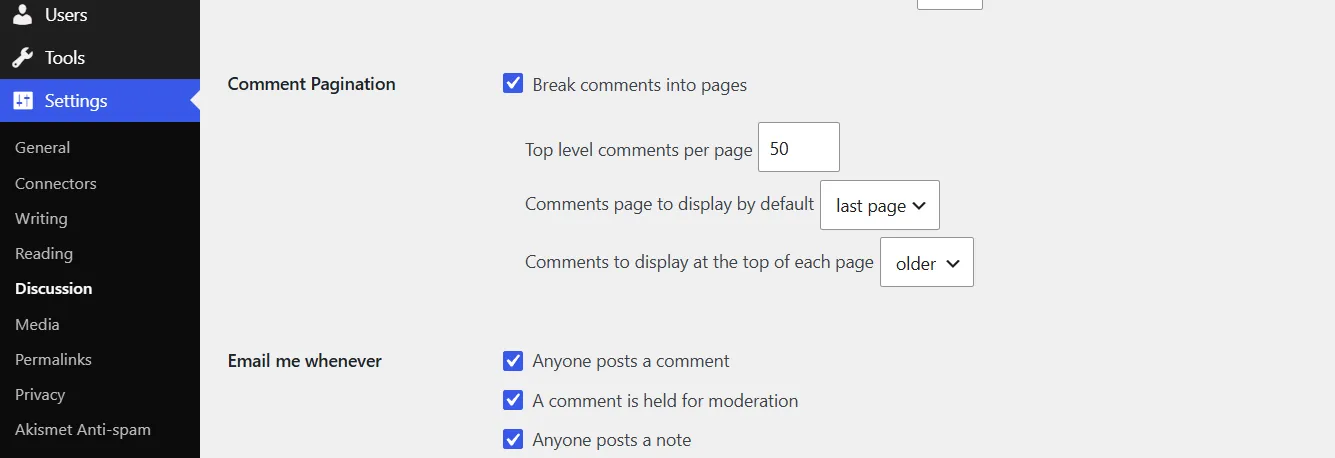
Getting lots of user comments is a sign that users are engaging with your website. While this is great news for your website, the downside is that loading many comments can slow it down. As a simple, practical solution, you can paginate user comments. To do this, go to Settings > Discussion and enable the “Break Comments into pages” option. The method for doing this is shown in the image below:
9. Advanced WordPress Settings to Speed Up Your Website
Some default WordPress settings need to be tweaked. For example, you can disable Pingbacks and Trackbacks, which are now obsolete and waste resources. You can also gain better control over memory allocation (WP Memory Limit) and how WordPress core behaves by adding optimization code to the wp-config.php file, which directly helps you learn how to speed up your WordPress site.
10. Reduce HTTP Requests
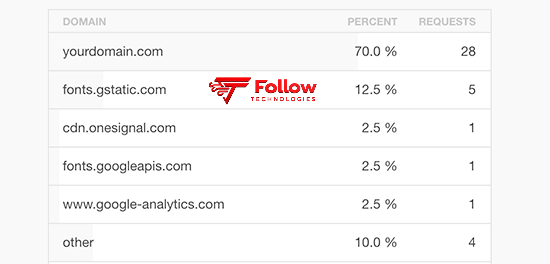
Many WordPress plugins and themes load files from other websites. These files may include scripts, analytics services, and other assets such as images. While most of these files are optimized, too many can slow down your website. Merging or removing scripts can help you control and limit HTTP requests outside your website. It’s also worth noting that a small number of these files usually won’t cause any problems for your website, so consider using this solution when the number of files mentioned is higher than usual. This can happen when you’re using a large theme or have a lot of plugins installed on your website.
11. Reduce requests sent to the database
Some themes and plugins send multiple queries to the WordPress database on every page load. Heavy and frequent requests cause server CPU usage and slow down the site. To solve this problem, review your theme code and manage these requests by using database caching and replacing heavy functions with static code.
Note: This section requires technical knowledge of PHP and basic knowledge of WordPress themes.How to reduce requests sent to the database:
Some WordPress themes are inefficiently coded, leading to more database requests. The increase in requests can increase server load and slow site loading. For example, functions such as get_option(), get_posts(), and $wpdb->get_results() issue a database query each time they are called. Therefore, frequent and unnecessary use of these functions in the theme or plugin can affect site performance. You can reduce the number of requests by rewriting the code, using WordPress’s internal caching, or storing the results in variables. A simple example of optimizing calls:
<!--?php
// Repeated call
$site_name = get_bloginfo('name');
echo $site_name;
echo $site_name;
// Optimized by storing in variable
$site_name = get_bloginfo('name');
echo $site_name;
echo $site_name;
?-->
Also, when defining HTML and meta tags, fixed or optimized values can be used to reduce the need for unnecessary calls:
<meta http-equiv="Content-Type" content="text/html; charset=UTF-8">
12. Optimize database data with the WP-Sweep plugin
After using WordPress for a while, a lot of information will accumulate in the database, most of which you probably won’t need much of; therefore, it is better to reduce the size of the database. For this purpose, you can use the WP-Sweep plugin. This plugin will help you remove items such as deleted posts, previous post edits, and unused tags from the database, and optimize it with just one click.
13. Restricting post editing
Creating edits for each post will take up space in your database. Additionally, some believe that these edits may affect some database queries. In other words, your website will be slowed down by unnecessary database queries. To solve this problem, you can limit the number of edits stored in WordPress. To do this, add the following code to your wp-config.php file:
define( 'WP_POST_REVISIONS', 4 );
With this line of code, you have instructed WordPress to store only the last 4 edits of each post in the database and delete the previous edits.
14. Disable Website Hotlinking and Leaching
If you produce high-quality content for your website, it may be stolen by content thieves sooner or later. Don’t worry about SEO issues, because the problem of duplicate content only occurs when your website uses content from other sites. But sometimes, instead of copying the content, thieves upload your images directly from the URL to your website. This consumes a lot of your capacity and usually happens without your knowledge. To prevent hotlinking, you can add the following code to your website’s. htaccess file:
# Disable Image Hotlinking
RewriteEngine on
RewriteCond %{HTTP_REFERER} !^$
RewriteCond %{HTTP_REFERER} !^http(s)?://(www\.)?Followtechnologies.com [NC]
RewriteCond %{HTTP_REFERER} !^http(s)?://(www\.)?google.com [NC]
RewriteRule \.(jpg|jpeg|png|gif)$ - [NC,F,L]
Note: Replace Followtechnologies.com with your website domain address.
This method will block direct access to your images from other sites and conserve your site’s bandwidth.
15. Using Lazy Loading
If you use many images or videos on your website, you can enable Lazy Loading. In this method, instead of loading all images and videos at once, only those displayed at the same time are loaded, and after the user scrolls down, the required images and videos are loaded again. In this way, your website’s speed will increase significantly. To use lazy loading for images, iFrames, and videos, you can use the Lazy Load by WP Rocket plugin.
16. Use DNS-level website firewall
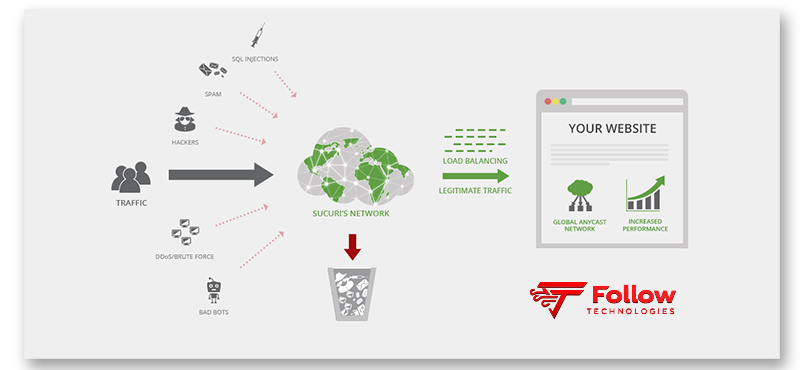
DNS-based firewalls, like Cloudflare, scan and filter traffic to your site before it reaches the main server. These firewalls block malicious traffic, spam bots, and DDoS attacks, and only allow access to legitimate users. This process significantly reduces server load and frees up processing resources for faster page loading.
17. Fix HTTPS/SSL errors
If you have recently switched your website to HTTPS, you may have encountered mixed-content errors. This error, known as a Mixed Content Error among WordPress security experts, is mainly caused by improper protocol definitions in links.
To solve this problem, you can use the Really Simple SSL plugin, but note that it changes all the URLs on your website to HTTPS before sending them to the user’s browsers. You can also manually change all the URLs of your website without using the plugin. This solution may seem simple, but it will significantly increase your WordPress website’s speed.
18. Use the latest version of PHP
WordPress is built on the PHP programming language. Each new version of PHP is faster and more efficient than the previous one. Upgrading your host’s PHP version to the latest stable version (e.g., 8 or higher) can double your site’s code processing speed; of course, be sure to check the compatibility of your theme and plugins before doing so.
Don’t forget to use the latest version of WordPress to speed up your WordPress website.
19. Obtaining services from reputable hosting companies
The most fundamental step in speeding up your WordPress site is building a strong infrastructure. If your hosting is weak and lacks adequate dedicated resources, all your optimization efforts will be in vain. Choosing a reputable hosting company like ParsePack, which offers powerful servers with NVMe drives, LiteSpeed web servers, and specialized WordPress support, guarantees the speed, uptime, and stability of your website.
20. Install WordPress Cache Plugin
Pages designed with WordPress are dynamic. In other words, the way the page is being viewed varies from user to user. In fact, dynamic pages change instantly in response to user actions; for example, if you move your cursor over a button, its color changes. To create these pages, WordPress has to go through a process to gather the required information from the user, assemble it, determine how to interact with the user, and finally display the result. Therefore, this process involves many steps, and when several users visit your website at the same time, the likelihood of a decrease in website speed is very high.
Cache plugins are used in these situations. In other words, by using these plugins, instead of repeating the entire page-loading process each time, a copy of the page is made after the first load and then reused for subsequent users. These plugins are especially useful for speeding up busy websites. For more explanation, see the image below:
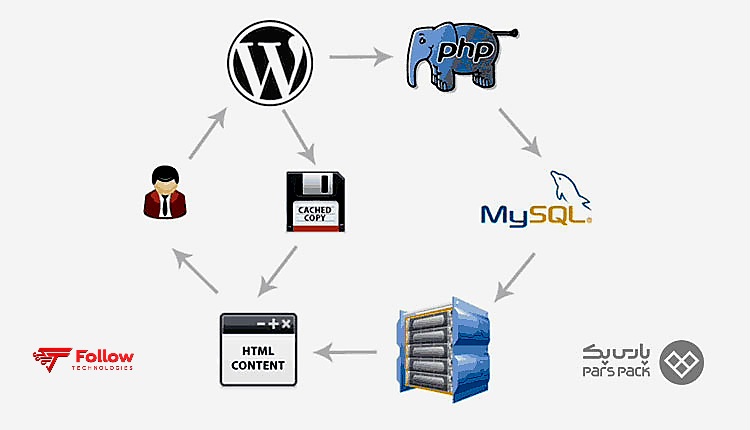
As you can see in the image above, when a user visits your WordPress website, the server pulls information from the MySQL database and retrieves the PHP files. Then it combines them into an HTML document and presents it to the user. This process can be very time-consuming; however, when you use WordPress caching plugins, many of these time-consuming processes are eliminated. There are several plugins built for this purpose, including WP Rocket and WP Super Cache.
WordPress speed booster plugins
To put the above techniques into practice, you need powerful tools. The best plugins to speed up your WordPress site and increase WooCommerce speed are:
- LiteSpeed Cache: The best cache plugin for LiteSpeed servers that meets all your optimization needs in one place.
- WP Rocket: The most comprehensive and popular premium plugin for caching, file compression, and database optimization.
- W3 Total Cache: A plugin with highly advanced settings suitable for professional web admins.
- Autoptimize: A great tool for minifying and combining HTML, CSS, and JS code.
- Smush and ShortPixel: Two unbeatable plugins for compressing images, enabling Lazy Load, and changing image formats.
- Perfmatters: A lightweight plugin for disabling unnecessary scripts across various pages.
- WP-Sweep: The most powerful tool for professional database table cleaning and consolidation.
How to measure the speed of your WordPress website?
Before and after you make any optimizations, test your site speed to see how the changes affect it. The most reliable tool for measuring speed is Google PageSpeed Insights. This tool analyzes your site in both mobile and desktop modes and assigns a Core Web Vitals score. It also pinpoints which code is blocking rendering or which images need to be compressed. In addition to Google’s tool, GTmetrix and Pingdom are also very useful because they provide waterfall graphs for a detailed look at server requests.
Reasons for slowing down your WordPress site
Several factors can cause WordPress to slow down, and understanding them will help you prevent them. The most important reasons that cause a site to slow down are:
- Poor quality hosting: Using weak servers with excessive shared resources.
- Large images: No resizing or compression of uploaded photos.
- Non-standard templates: Messy code and heavy graphic elements in the template.
- Too many and heavy plugins: Running additional code and interfering with the server with background processes.
- Not using cache: Dynamic loading of all pages and double pressure on the database.
- High external requests: Loading fonts, advertising scripts, and third-party analytics tools.
- Bloated database: An accumulation of redundant information and duplicates that slows information retrieval.
Conclusion
Speed is the heartbeat of a successful website. In this article, we learned why speed matters and how to maximize your site’s performance using specialized techniques such as optimizing images (with WebP and Lazy Load), installing reputable caching plugins, managing cron jobs, cleaning up your database, and, of course, choosing a powerful hosting provider. By implementing these methods to optimize your WordPress site speed and tweaking your dashboard settings, you now have the knowledge and experience you need to fix your site’s slowness, improve your Core Web Vitals score, and satisfy both users and search engines. Remember that speed optimization is an ongoing process, so check your speed-testing tools regularly.
Frequently Asked Questions
Does increasing website speed affect SEO?
Yes, search engines place a lot of importance on website speed; to the point that Google has explicitly stated that slow websites will experience a decrease in website traffic.
Do too many plugins slow down WordPress?
Yes; every plugin adds some code to the site and consumes server resources. Installing too many plugins, especially those that are not standard or perform background processing, is one of the main reasons for site speed drops and WordPress slowness.
What is the best tool to test WordPress site speed?
Google PageSpeed Insights is the best and most reliable option because it accurately checks your site against Google’s ranking metrics (Core Web Vitals). GTmetrix and Pingdom are also good complementary options.
Does changing the PHP version affect WordPress performance?
Yes, the impact is significant. Upgrading your hosting’s PHP version to newer versions (such as 8.0 or higher) will both speed up page load times and improve the security of your platform by enabling structural improvements in code processing.