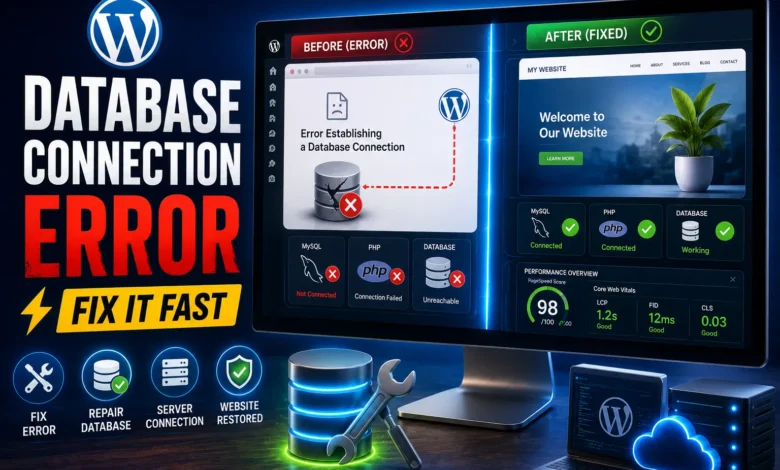
What is an Error Establishing a Database Connection, and why does it occur? As you know, WordPress is a content management system written in PHP, with data stored in a MySQL database.
In fact, a database connection error occurs when the connection between the MySQL database and PHP code fails. In simpler terms, this error occurs when there is no communication between the database and WordPress files. In this case, the website becomes inaccessible to users.
So what are the reasons for the “Error Establishing a Database Connection” error in WordPress, and how can we fix it? In this tutorial from Follow Technologies, we will show you how to easily fix the Error Establishing a Database Connection error in WordPress. So stay with us until the end.
Reason for the Error Establishing a Database Connection
One common error that most WordPress content management system users encounter is a database connection error, but there is no need to worry; you can easily fix it.
The first step to fixing the Establishing a Database Connection error in WordPress is to identify the cause. Some of the main reasons for database connection errors are as follows:
- Incorrect information in the Database section in the wp-config.php file
- Database corruption
- Database server responsiveness
- Database server failure
- Placing database information on a host other than the local host
Why does an error occur when connecting to the WordPress database?
In fact, a database is software that makes it easy to store, organize, and retrieve data in other software. WordPress, as a content management system, uses a MySQL database to store all the content and other data on a website. In fact, every time a user logs into the website, a connection is established to the database.
WordPress needs information such as a name, username, password, and database server to connect to the database. All of this information is stored in the wp-config.php file. If any of this information is incorrect, WordPress will not be able to connect to the database server, and you will encounter a database connection error.
Now the question is: how can we fix the “Error Establishing a Database Connection” error? Below, we will provide solutions to fix this error easily.
1. Check the correctness of the WordPress database information
The most common reason for the Error Establishing a Database Connection error in WordPress is incorrect database login information in the wp-config.php file. If you have moved your WordPress website to a new host, this could be the reason why the database connection error appears in WordPress.
WordPress database authentication information is stored in the wp-config.php file. In fact, this file is related to the WordPress configuration, where important settings, such as database information, are stored.
Some of the information you can see in the wp-config.php file are:
// ** MySQL settings - You can get this info from your web host ** //
/** The name of the database for WordPress */
define( 'DB_NAME', 'database_name_here' );
/** MySQL database username */
define( 'DB_USER', 'username_here' );
/** MySQL database password */
define( 'DB_PASSWORD', 'password_here' );
/** MySQL hostname */
define( 'DB_HOST', 'localhost' );
You need to make sure that the database name, username, password, and database host information are correct. You can verify this information in your WordPress hosting account dashboard. To do this, log in to your hosting account and click on MySQL Database in the Database section.
This will take you to the database management page in your hosting dashboard. Here, you can find your database name and username.
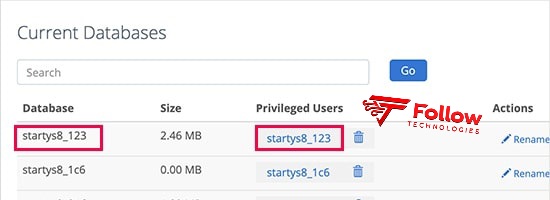
Fix error establishing a database connection
You can now access database user accounts and password change links.
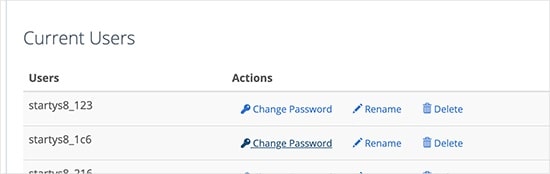
How to verify WordPress database information
Once you have confirmed your database name, username, and password, you can change this information in the wp-config.php file if needed.
Now log back in to your website and check whether the database communication error has been resolved. If you can still see the error, there is something else wrong with the information, and you should look for another reason.
2. Check your database hosting information
If you are sure that your database name, username, and password are correct, then check your database host information. Most WordPress hosting companies use localhost as their database host.
However, some companies use different servers for database hosting. In this case, your database hosting information will not be localhost. For this reason, you will need to contact your WordPress hosting company and verify your database hosting information.
3. Repair the WordPress database
For example, if you encounter another error in wp-admin, such as one or more database tables being inaccessible, the database may need to be repaired; check it. You can do this by adding the following line to your wp-config.php file. Make sure to add the line just before the ‘That’s all, stop editing! Happy blogging’ line in your wp-config.php:
define('WP_ALLOW_REPAIR', true);
Finally, after doing this, you can view the settings by visiting this page:
http://www.yoursite.com/wp-admin/maint/repair.php
http://www.yoursite.com/wp-admin/maint/repair.php
Repair and check WordPress database
Note: The user does not need to be logged in to access the Database Repair page. Therefore, once you are done repairing and optimizing your database, make sure to remove this code from your wp-config.php.4. Check the database server
If everything looks good, but WordPress still can’t connect to the database, your database server (MySQL server) might be down. This problem usually occurs due to heavy server traffic. Basically, your hosting server can’t handle the load, especially with shared hosting. As a result, your website will become extremely slow.
To fix the error when establishing a database connection, the best thing you can do is contact your hosting company and ask whether your MySQL server can handle this amount of traffic.
Also, if you have other websites running on the same server, you can check them and confirm if your SQL server is down. If you don’t have any other websites on the same hosting account, go to your hosting dashboard, access phpMyAdmin, and connect to the database. If you can connect, check whether your database user has sufficient permissions.
To do this, create a new file called testconnection.php and place the following code in it:
<?php $link = mysqli_connect('localhost', 'username', 'password');
if (!$link) {
die('Could not connect: ' . mysqli_error());
}
echo 'Connected successfully';
mysqli_close($link);
?>
Make sure to replace the username and password. You can now upload this file to your website and access it through a web browser. If the script connects successfully, it means that your user has sufficient permissions and there is another problem. Now go back to your wp-config file to make sure everything is correct.
Other solutions to fix the error establishing a database connection
If you have tried the solutions provided but are still encountering the database connection error, you can try other methods to fix it, which we will outline below.
1. Update your WordPress website URL
Try updating your WordPress website URL using phpMyAdmin. Using your hosting account dashboard, access phpMyAdmin and select the WordPress database.
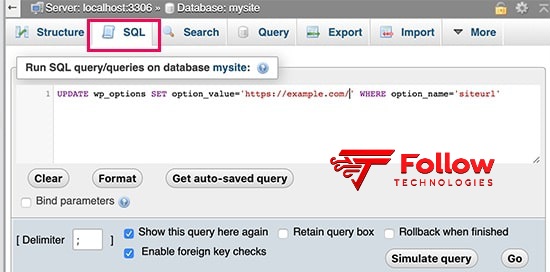
Update WordPress URL to fix Error Establishing a Database Connection
After that, click on the SQL menu at the top and enter the following MySQL statement:
UPDATE wp_options SET option_value='YOUR_SITE_URL' WHERE option_name='siteurl'
Don’t forget to provide your website URL and change wp_options to your table name, as you may have changed the WordPress table prefix.
2. Restart the web server
Dedicated server, localhost, and virtual private server (VPS) users can reboot their servers. This will restart your web server and database, which may resolve temporary bugs causing the error.
3. Contact your web hosting company
If all else fails, you may need to contact your web hosting company. All WordPress hosting companies will help you troubleshoot the problem, point you in the right direction, or even fix it for you.
Conclusion
Error Establishing a Database Connection is a common WordPress error that most users encounter. Apart from incorrect database login information, this error may also occur if the database server or its files are corrupted.
In this article from Follow Technologies WordPress, we first introduced you to the main reasons for the “Error Establishing a Database Connection” error in WordPress. Then we examined the main solutions to fix it. Using the solutions provided in this article, you can easily fix the error in establishing a database connection in WordPress.
Frequently Asked Questions
1. What are the reasons for database communication errors in WordPress?
Probably the most common reason for a database connection error is that WordPress has incorrect database login credentials. These credentials could be the database name, the username, or the password. Keep in mind that your WordPress login details are different from the information you use to access your website.
2. How to check your database connection in WordPress?
To do this, update the WordPress database connection details:
- Open File Manager and log in to the one.com control panel.
- Open wp-config.php.
- Find the login details. You can usually find the login details on line 20 in the wp-config file.
- Update the details.